For most people who work at a computer, Google Chrome is open almost every waking hour. Email lives there. Documents live there. Project management tools, communication platforms, research, and reporting all happen inside tabs. Chrome is effectively the operating system of modern knowledge work, and that means the way you configure it has an enormous impact on how much you actually get done.
The Chrome Web Store offers tens of thousands of extensions, and the range of quality is extreme. Some extensions are genuinely transformative, saving hours every week and removing friction from tasks you do dozens of times a day. Others are bloated, slow your browser down, and quietly collect data while offering minimal benefit. Finding the ones actually worth installing requires sorting through a lot of noise.
This guide does that work for you. It covers the best productivity Chrome extensions available in 2026, organized by category, with honest descriptions of what each one does, who it is best suited for, and what to watch out for. You will also learn how to manage your extensions so they do not slow Chrome down, and how to build a lean, effective extension setup that actually supports your work rather than adding to it.
What Makes a Chrome Extension Genuinely Productive
The Problem With Most Extension Lists
Most best extensions articles list the same twenty tools and describe each one in a sentence. What they rarely tell you is which extensions are worth the performance cost, which ones have changed significantly since they were first reviewed, and which categories of tools actually produce a measurable difference in how people work. An extension you never open is not a productivity tool. It is just another icon in your toolbar adding to page load time.
The extensions in this guide were selected based on three criteria. First, they solve a real, recurring problem that comes up in browser-based work. Second, they are actively maintained and work correctly with current versions of Chrome. Third, they have a strong track record from a large user base rather than being new and unproven.
Performance Versus Functionality: The Trade-Off Every Extension Involves
Every extension you install adds overhead to Chrome. Some are lightweight and barely affect performance. Others run on every page, intercept network requests, or keep background processes running continuously. A browser with thirty extensions installed will behave differently than one with five.
A good principle is to install extensions for things you do at least several times a week, and to audit your extensions every few months, removing anything you have not used recently. The goal is a curated set of tools that each earn their place by delivering real value on a regular basis.
“The best Chrome extension setup is not the one with the most tools. It is the one where every installed extension earns its place by solving a real problem you encounter multiple times every week.”
Tab Management Extensions
Why Tab Management Is the First Problem to Solve
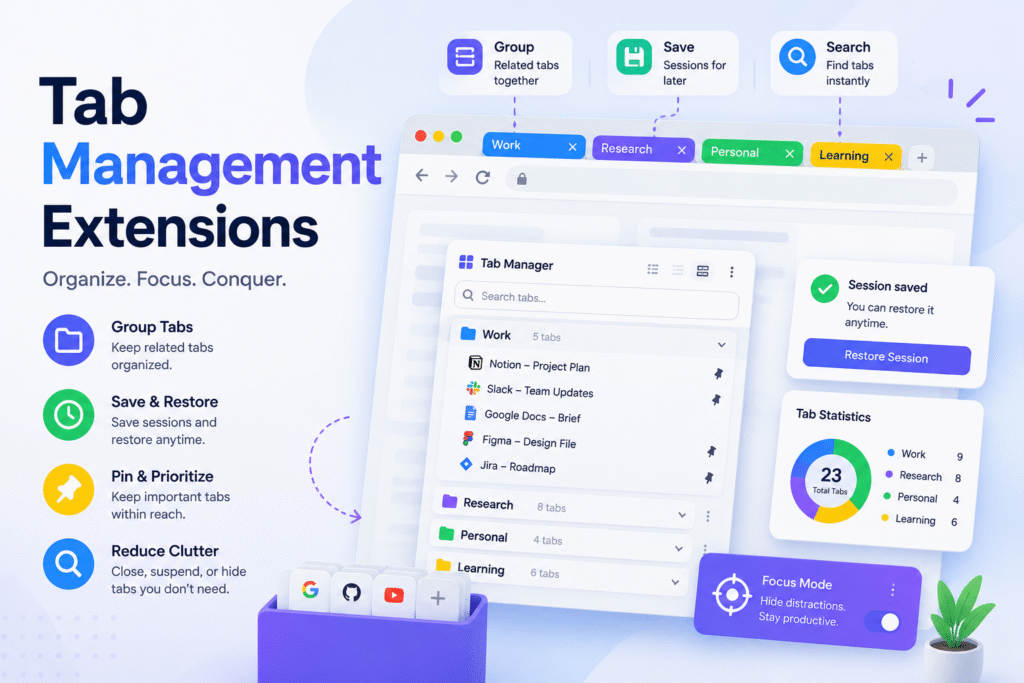
Most productivity problems in Chrome start with tabs. The browser makes it too easy to open tabs and too easy to avoid closing them. A session that starts with three tabs can balloon to forty within an hour of research or multitasking. At that point, finding the right tab takes longer than the task you opened it for, and the visual chaos of the tab bar creates a low-grade cognitive load that affects everything else you are trying to do.
Tab management extensions address this in different ways. Some suspend inactive tabs to recover memory. Some let you group and save tabs for later. Some give you a visual dashboard to navigate open tabs more clearly. The right tool depends on how you work and what the specific tab problem looks like for you.
OneTab
OneTab converts all your open tabs into a single list with one click. The tabs close, and the list sits in a OneTab page that you can restore individually or all at once. It is one of the simplest and most effective memory-saving tools available for Chrome. If you routinely have twenty or thirty tabs open and your computer is slowing down, OneTab alone can recover a significant amount of RAM and make Chrome feel responsive again.
The list OneTab creates is also a useful record of what you were working on. Named groups within OneTab serve as a lightweight session manager, letting you save tab sets for specific projects and restore them when you return to that work. It is free, has no subscription, and the interface has remained straightforward through years of updates.
Workona Tab Manager
Workona takes a more structured approach to tabs by organizing them into workspaces. Each workspace holds a named set of tabs related to a project, client, or area of work. Switching workspaces loads the relevant tabs and suspends the ones from other workspaces, keeping memory usage low and context switching fast.
Workona suits people who juggle multiple ongoing projects and need to context-switch cleanly throughout the day. The free tier covers most individual use cases. The paid tier adds team collaboration features, shared workspaces, and app integrations. For solo users, the free version is fully functional.
Tab Suspender
Tab Suspender automatically suspends tabs you have not visited recently, replacing the live page with a lightweight placeholder. When you click the tab, the page reloads. This reduces Chrome’s memory usage substantially without requiring you to close tabs manually. It runs quietly in the background and is configurable, letting you set how long a tab must be inactive before it suspends and which domains to exclude from suspension.
Focus and Distraction-Blocking Extensions

The Case for Blocking Distractions at the Browser Level
Willpower is not a reliable productivity strategy. When the same browser you use for work also provides instant access to social media, news, and video streaming, the path of least resistance during a moment of boredom or difficulty is always the distraction. Distraction-blocking extensions remove that path, making productive work the easiest available option during the hours you designate for focused effort.
These extensions work best when you use them consistently rather than reaching for them only when you feel particularly unfocused. Setting a daily schedule for blocked sites, and leaving that schedule in place as the default, removes the friction of deciding whether to enable blocking. The decision is made in advance, and the extension simply enforces it.
Freedom
Freedom is one of the most established distraction blockers available and works across Chrome, other browsers, and other apps simultaneously. You create blocklists of sites and apps you want to restrict, then start a session for a defined period of time. During that session, the blocked sites are inaccessible. Freedom also offers a locked mode that prevents you from stopping a session early, which is the feature that makes it meaningfully different from extensions that are easy to disable when temptation strikes.
Freedom requires an account and has a free tier with limited sessions per month. The paid subscription unlocks unlimited sessions, scheduled blocking, and cross-device sync. It is most useful for people who have already tried simpler blockers and found them too easy to circumvent.
StayFocusd
StayFocusd is a free Chrome extension that limits the amount of time you can spend on websites you designate as time-wasting. Once you have used your daily allowance for a blocked site, it becomes inaccessible for the rest of the day. The daily allowance resets at midnight. StayFocusd also includes a Nuclear Option that blocks all websites except those you explicitly allow, useful for periods of intensive focused work.
The extension is highly configurable. You can block specific pages within a site rather than entire domains, set different limits for weekdays versus weekends, and customize the hours during which blocking is active. For users who want a free, browser-native blocking solution, StayFocusd is the most fully featured option available.
Momentum
Momentum takes a different approach to focus. Rather than blocking sites, it replaces the Chrome new tab page with a personal dashboard showing a daily focus question, an inspiring background image, a to-do list, and a weather widget. The effect is subtle but meaningful: instead of a new tab defaulting to something distracting, it defaults to a reminder of what you intend to accomplish.
Momentum works well as a complement to a blocking extension rather than a replacement for one. The free version covers the core experience. The Momentum Plus subscription adds integrations with task managers like Todoist and Asana, a habit tracker, and additional customization. Many users find the free version entirely sufficient.
Note-Taking and Clipping Extensions
Why In-Browser Note-Taking Matters
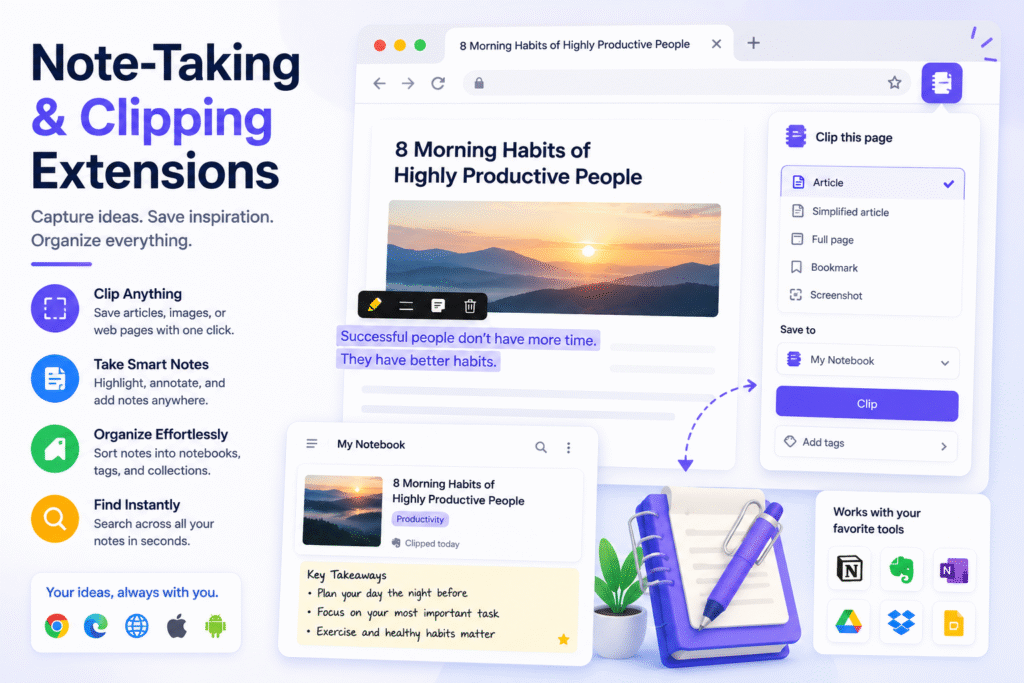
A large portion of knowledge work involves reading things online and needing to remember or act on them later. Without a friction-free system for capturing information as you encounter it, research becomes inefficient and ideas get lost. The best note-taking extensions minimize the gap between seeing something worth saving and actually saving it.
Notion Web Clipper
The Notion Web Clipper lets you save any web page to your Notion workspace with one click. You can select which Notion database to save to, add properties, and include a note before saving. It captures the page title, URL, and a simplified version of the content. For anyone whose knowledge management system is built in Notion, the clipper is an essential part of the workflow, removing the need to copy and paste content manually.
The clipper works best when paired with a well-organized Notion database set up to receive clippings. If your Notion workspace is already structured, the clipper slots in naturally. If you are newer to Notion and your workspace is not yet organized, the clipper may add more noise than value until that foundation is in place.
Evernote Web Clipper
Evernote’s clipper is one of the most mature web clipping tools available and offers more formatting options than most alternatives. You can capture a simplified article view, a full page screenshot, a selected region, or just a bookmark. The clipper also lets you annotate and highlight content before saving, making it useful for research workflows where commentary and markup are part of the process.
Evernote’s free tier limits the number of devices and monthly upload capacity. For heavy research workflows, an Evernote Personal subscription makes more sense. Users who clip occasionally and do not need annotation will find the free tier adequate.
Roam Highlighter and Readwise Highlighter
For users who want to capture highlights from articles rather than whole pages, highlighter extensions like Roam Highlighter and the Readwise extension let you select text on any web page, save the highlight, and sync it to a connected note-taking or reading app. Readwise in particular has become popular with readers who want highlights from articles, books, PDFs, and Kindle books to flow into a single system and surface periodically for review.
Writing and Communication Extensions
Grammarly
Grammarly is the most widely used writing assistant available as a Chrome extension. It checks spelling, grammar, punctuation, clarity, and tone in real time across every text field in Chrome, including email, documents, forms, and chat interfaces. The free version catches the most common errors. The premium version adds more advanced suggestions for sentence structure, word choice, conciseness, and formality adjustment.
Grammarly is valuable for anyone who writes a significant volume of professional communication in English. It catches errors that spellcheck misses and suggests improvements that make writing clearer and more direct. The extension runs on nearly every text input across the web, so it functions as a passive quality check on everything you type without requiring any deliberate activation.
Compose AI
Compose AI is an AI writing assistant that integrates directly into text fields across Chrome. It can autocomplete sentences as you type, suggest email replies, rephrase selected text in a different tone, and generate draft content from a short prompt. Unlike standalone AI tools that require you to switch tabs, Compose AI works inside whatever interface you are already using, reducing the friction of incorporating AI assistance into everyday writing tasks.
The free tier includes a meaningful set of features for daily use. The paid tier removes usage limits and adds more advanced generation capabilities. For professionals who write high volumes of email or routine documents, Compose AI can reduce the time spent on first drafts significantly.
Hunter Email Finder
Hunter is an extension for professionals who need to find contact email addresses as part of their work. When you visit a company website, Hunter searches its database for verified email addresses associated with that domain and displays them in a panel. It is especially useful in sales, recruiting, and outreach roles where finding the right contact efficiently is a recurring task. The free plan provides a limited number of monthly searches. Paid plans scale with volume.
Loom Screen Recorder
Loom’s Chrome extension lets you record your screen, camera, or both with one click and instantly share a link to the video. It is particularly useful for asynchronous communication in remote teams, replacing lengthy written explanations with a short walkthrough video. Recording a two-minute screen capture to explain a process or provide feedback is often faster and clearer than composing an email describing the same thing. Loom is free for individuals with a monthly recording limit. Teams and businesses can subscribe for unlimited recordings and additional features.
Time Tracking and Task Management Extensions
Toggl Track
Toggl Track integrates time tracking directly into Chrome. The extension adds a timer button to popular work tools including Gmail, Trello, Asana, GitHub, and dozens of others, letting you start a timer from within whatever tool you are already using without switching to the Toggl app. Time entries sync to your Toggl account and roll up into reports showing how your hours were distributed across projects and clients.
For freelancers billing by the hour, Toggl Track is one of the most practical time tracking solutions available. For salaried employees, it provides useful data about how work time is actually being spent versus how it is perceived to be spent. The free individual plan is fully functional for personal time tracking. Teams and agencies benefit from the paid tiers that add project budgets, team dashboards, and payroll integrations.
Todoist
The Todoist Chrome extension adds a quick-capture button to the browser that lets you save a task from any page with a single click. The current page URL is automatically attached as context, which is especially useful for capturing research tasks, follow-up items from articles, and action items from online documents. Tasks sync immediately to your Todoist account across all devices.
Todoist suits people who already use Todoist as their primary task manager. For those who do not, the extension alone is not a reason to adopt the platform, but for existing Todoist users, the Chrome integration removes a common capture friction point and makes the habit of adding tasks more consistent.
Clockify Time Tracker
Clockify is a free time tracker with a Chrome extension that works similarly to Toggl Track. It integrates with a wide range of project management and productivity tools and provides detailed time reports at no cost. The free plan is genuinely unlimited with no time-based restrictions, which makes it a strong choice for individuals and small teams who want robust time tracking without a subscription.
Password Management and Security Extensions
Why a Password Manager Is a Productivity Tool
Password managers are typically categorized as security tools, but they are equally productive tools. The time spent trying to remember passwords, resetting forgotten ones, and navigating login friction across dozens of work tools adds up significantly. A good password manager with a Chrome extension handles all of this automatically, filling credentials instantly and generating strong unique passwords without any manual effort.
1Password
1Password is widely regarded as the most polished password manager with a Chrome extension. It fills usernames and passwords, stores secure notes and credit card details, generates strong passwords, and flags reused or compromised credentials. The extension integrates tightly with the desktop app and requires a subscription. For individuals and teams who use passwords heavily across many work tools, the time saved on authentication alone justifies the cost.
Bitwarden
Bitwarden is a fully open-source password manager with a Chrome extension and a generous free tier that includes unlimited password storage across unlimited devices. It offers the core functionality of paid alternatives at no cost for individual users. The extension fills credentials, generates passwords, and syncs across devices. For users who want a capable, privacy-respecting password manager without a subscription, Bitwarden is the strongest option available.
Complete Extension Reference
Best Productivity Chrome Extensions by Category
| Extension | Category | Best For | Free Tier |
|---|---|---|---|
| OneTab | Tab Management | Collapsing all tabs into a saved list instantly | Yes, fully free |
| Workona | Tab Management | Project-based workspaces for multiple ongoing projects | Yes, limited |
| Tab Suspender | Tab Management | Auto-suspending inactive tabs to save memory | Yes, fully free |
| Freedom | Focus | Locked blocking sessions across browser and apps | Yes, limited |
| StayFocusd | Focus | Daily time limits on distracting websites | Yes, fully free |
| Momentum | Focus | Replacing new tab page with a daily focus dashboard | Yes, limited |
| Notion Web Clipper | Note-Taking | Saving web pages directly into Notion databases | Yes, fully free |
| Evernote Clipper | Note-Taking | Clipping with annotation and format options | Yes, limited |
| Grammarly | Writing | Grammar and clarity checking across all text fields | Yes, limited |
| Compose AI | Writing | AI autocomplete and drafting inside Chrome | Yes, limited |
| Loom | Communication | Quick screen recording for async team communication | Yes, limited |
| Toggl Track | Time Tracking | One-click timers inside Trello, Asana, Gmail, and more | Yes, fully free |
| Todoist | Task Management | Quick task capture with current page URL attached | Yes, limited |
| Bitwarden | Password Management | Full-featured password manager with no subscription | Yes, fully free |
| 1Password | Password Management | Polished credential filling and team vaults | No, paid only |
Lightweight Setup vs. Full Productivity Stack
| Setup Type | Extensions to Include | Ideal For |
|---|---|---|
| Minimal (3 extensions) | Bitwarden, OneTab, Grammarly | Users who want low overhead and core functionality only |
| Focused Worker (5) | Bitwarden, OneTab, StayFocusd, Grammarly, Momentum | Anyone struggling with tab chaos and online distraction |
| Remote Professional (7) | Bitwarden, Workona, Grammarly, Loom, Toggl Track, Todoist, Compose AI | Remote workers managing projects, communication, and billing |
| Researcher (6) | Bitwarden, OneTab, Evernote Clipper, Readwise, Grammarly, Momentum | Writers, analysts, and students doing heavy web research |
How to Manage Extensions Without Slowing Down Chrome
How Extensions Affect Browser Performance
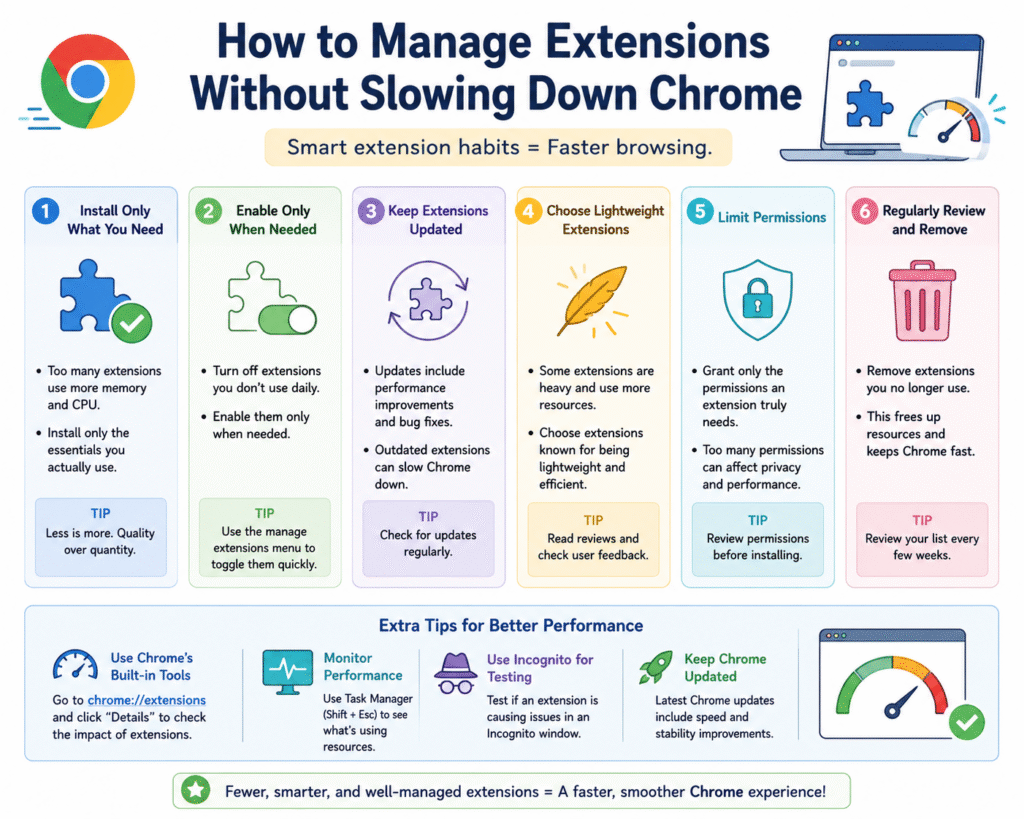
Each active extension in Chrome can add to page load time, consume memory, and in some cases run background processes that use CPU even when you are not actively using the extension. The impact varies widely. A simple bookmark tool might add negligible overhead. An extension that intercepts every page request to run checks, like some ad blockers and security scanners, adds more measurable latency.
The cumulative effect of many extensions is more significant than any individual one. A browser with twenty-five active extensions will behave noticeably differently from one with eight. If Chrome feels sluggish, opening the Task Manager within Chrome by pressing Shift, Escape shows you memory and CPU usage per extension and per tab, making it straightforward to identify which extensions are the heaviest.
How to Audit and Clean Up Your Extensions
- Type chrome://extensions into the address bar and press Return to open the extensions management page.
- Review each installed extension. For any extension you have not used in the past month, consider removing it rather than simply disabling it.
- Use the Details button on each extension to check what permissions it has requested. Extensions requesting access to all site data should be ones you trust and actively use.
- Disable rather than remove extensions you use occasionally but not daily. Disabled extensions do not run and do not consume resources.
- Repeat this audit every three months. Extension utility changes over time as your workflow evolves.
Using Extension Groups for Different Work Modes
Chrome supports extension toggling, and some users go further by keeping a separate Chrome profile for different contexts. A work profile has the full productivity extension stack active. A personal profile has only personal tools. This separation prevents work extensions from running during personal browsing and prevents personal tools from cluttering the work environment.
To create a new Chrome profile, click your profile icon at the top right of Chrome and select Add. Each profile maintains its own extensions, bookmarks, and settings. Switching between profiles takes one click and keeps your browser environment matched to your current context.
“Treating your Chrome extension setup like a professional toolkit, installing deliberately, auditing regularly, and removing what is not earning its place, produces a browser that actively supports the way you work rather than one that simply accumulates tools over time.”
Conclusion:
The Chrome Web Store contains thousands of extensions claiming to make you more productive. The reality is that most people install tools in response to a specific problem, never remove them afterward, and gradually accumulate a bloated browser that creates as many problems as it solves. A tab manager you installed two years ago for a project that ended is still running. An AI writing tool you tried and abandoned is still intercepting page loads. The collection grows, and the browser slows.
The approach that actually works is intentional curation. Identify the specific friction points in your daily browser-based work. Install one extension that addresses each one. Give it two weeks to see whether it genuinely becomes part of your workflow. Remove it if it does not. Audit the full list every few months and cut anything that is not actively earning its place.
For most knowledge workers, the highest-impact place to start is password management, tab organization, and distraction blocking. Bitwarden, OneTab, and StayFocusd address those three problems at no cost and with minimal performance overhead. Add Grammarly if writing quality matters to your work. Add Toggl Track if time visibility is relevant to how you are evaluated or billed. Add Loom if you communicate frequently with remote colleagues. Build from there, one deliberate addition at a time.
The goal is a browser that fits your work like a well-organized workspace rather than a cluttered drawer. That outcome is achievable in an afternoon of setup and maintained with a few minutes of review every quarter. The tools in this guide are the ones most likely to get you there.
Frequently Asked Questions About Productivity Chrome Extensions
Do Chrome extensions slow down my browser?
Some do and some do not. Extensions that run on every page, intercept network requests, or keep background processes active have a measurable performance cost. Lightweight extensions like bookmarking tools or simple new tab replacements add very little overhead. The cumulative effect of having many extensions matters more than any individual one. Use Chrome’s built-in Task Manager to identify which extensions are using significant memory or CPU, and remove ones that are heavy but rarely used.
Are Chrome extensions safe to install?
Extensions from the Chrome Web Store go through a review process, but not all extensions are equally trustworthy. When installing an extension, review the permissions it requests carefully. An extension that requests access to all websites you visit can read any data on any page, including sensitive information. Stick to extensions from established developers with large user bases and regular update histories. Avoid installing extensions from sources outside the Chrome Web Store, and periodically review the permissions of extensions you already have installed.
What is the best free productivity extension for Chrome?
For most users, the combination of Bitwarden and StayFocusd provides the highest immediate impact at no cost. Bitwarden removes authentication friction across every site you log into, and StayFocusd limits time on distracting websites. Both are fully functional at no cost. If tab overload is the primary problem, OneTab addresses it immediately and is also entirely free. The best choice depends on which specific friction point in your current browser workflow is costing the most time.
How many Chrome extensions should I have installed?
There is no universal right number, but a practical target for most users is between five and ten actively enabled extensions. Below five, you may be missing tools that would genuinely help. Above ten, the cumulative overhead and management complexity start to outweigh the marginal benefit of each additional tool. The more relevant question is whether each installed extension solves a real problem you encounter regularly. An extension that earns its place through daily use is worth keeping regardless of how many others you have. An extension you have not opened in two months probably should not be there.
Can I use Chrome extensions on mobile?
Chrome extensions are not supported on the Chrome mobile app for iOS or Android. This is a platform limitation set by Apple and Google for their respective mobile operating systems. If you use Chrome on a desktop or laptop, your extensions are active there but do not carry over to mobile browsing. Some extension developers offer companion mobile apps that provide similar functionality. Users who need productivity tools across mobile and desktop often rely on apps with both a Chrome extension and a mobile app, such as Todoist, Toggl Track, and Notion, to maintain a consistent workflow across devices.