1. Introduction
Almost every part of modern life now runs through connected devices. We bank on our phones, store family photographs in the cloud, run businesses from laptops and let children learn on tablets. Each of those conveniences also creates an opening for criminals, and the tools they use are becoming cheaper, faster and more convincing every year. Antivirus software is the long-standing, everyday defence against that risk.
This guide explains antivirus software in plain language. It covers the definition, the technology behind it, the reasons it remains important, the different kinds of threats it faces, and how to pick and use a product sensibly. It also reviews twenty widely known antivirus programs and compares them side by side, so that readers can narrow their choices with confidence.
Note on scope: This article is an independent educational guide. It is not sponsored, and no product is paid to appear. Features, platforms and prices change often, so always confirm current details on the vendor’s official website before buying.
2. What Is Antivirus Software?
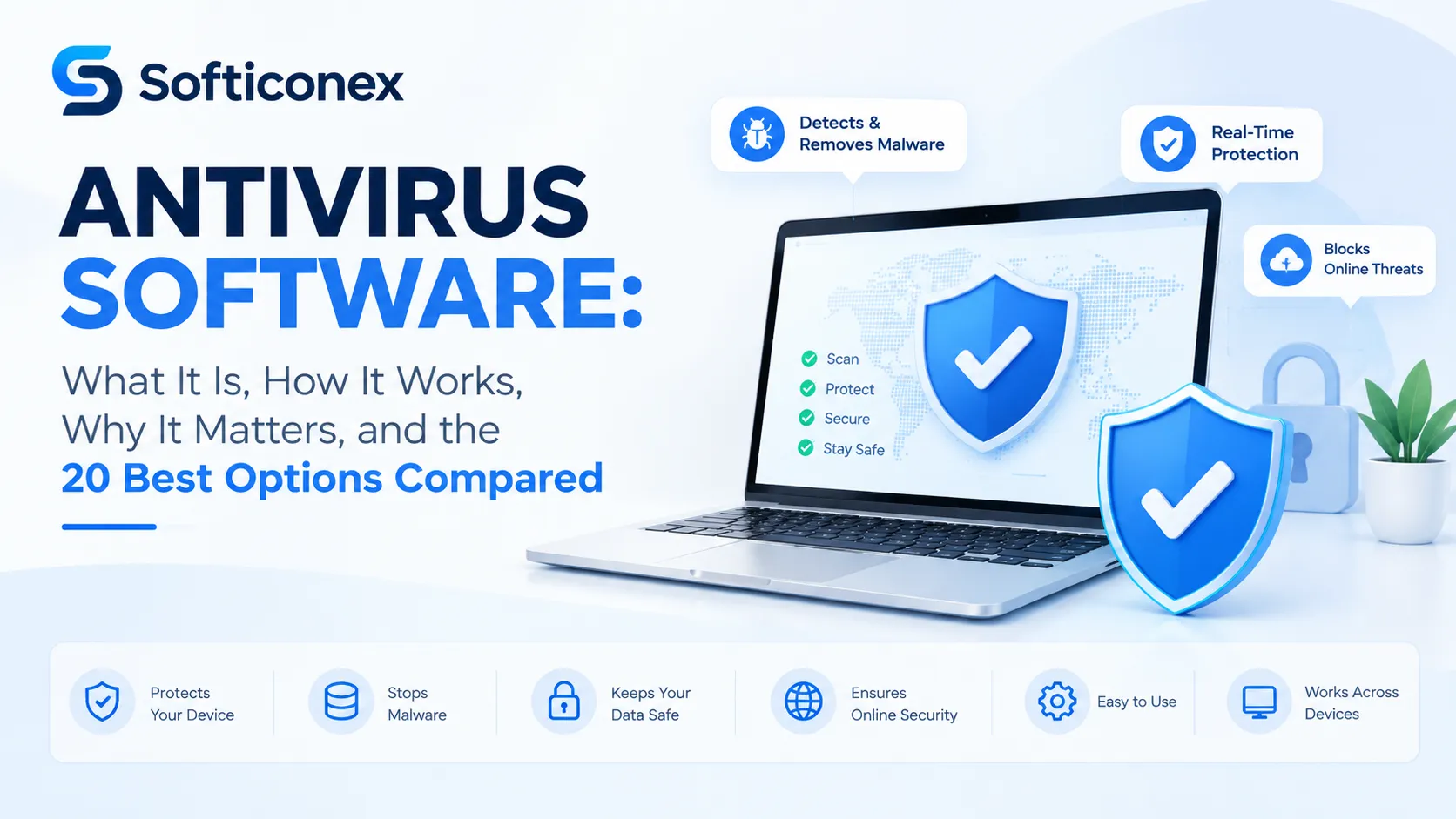
Antivirus software is a program that protects a computer, phone or network from malicious software, commonly called malware. It searches files, programs, downloads, e-mail attachments and web traffic for signs of harmful code, blocks what it recognises as dangerous, and removes or isolates anything that has already got in.
The word “virus” is now used loosely. Strictly, a virus is one type of malware that attaches itself to other files and spreads when they are shared. Today’s antivirus products, however, defend against a much larger family of threats, including worms, trojans, ransomware, spyware, adware, rootkits and phishing attempts. Many vendors now prefer the terms “anti-malware” or “endpoint protection”, but “antivirus” remains the name most people search for and understand.
2.1 A Short History
Self-copying programs appeared in the early 1970s as experiments, and the first widely spread computer viruses travelled on floppy disks during the 1980s. The first commercial antivirus tools emerged in the late 1980s, initially as small utilities that removed one specific virus at a time. During the 1990s the internet and e-mail turned malware into a global problem, and antivirus vendors moved to continuously updated signature databases. In the 2000s, spyware, botnets and financial fraud pushed the industry to add firewalls and web filters. In the 2010s and 2020s, ransomware, targeted attacks and machine learning changed the field again, moving protection away from simple file matching towards behaviour analysis and cloud intelligence.
2.2 What Antivirus Software Is Not
- Not a complete security strategy: It is one important layer, not a shield against every risk, including human error.
- Not a substitute for updates: Unpatched operating systems and apps remain a prime target.
- Not a magic cure for scams: A convincing fraud message that persuades you to hand over a password may never contain any malicious file.
3. Understanding the Threats
To appreciate what antivirus software does, it helps to know what it is up against. The table below summarises the most common categories of malicious software.
| Threat | What it does | Typical entry route |
|---|---|---|
| Virus | Attaches to legitimate files and spreads when infected files are shared or run. | Infected downloads, shared drives |
| Worm | Copies itself across networks without needing a host file. | Network flaws, e-mail |
| Trojan | Pretends to be useful software while performing hidden harmful actions. | Fake apps, cracked software |
| Ransomware | Encrypts files and demands payment for their release. | Phishing e-mails, unsafe downloads, exposed remote access |
| Spyware | Secretly monitors activity and collects personal information. | Bundled installers, malicious apps |
| Keylogger | Records typed keys to steal passwords and card numbers. | Trojans, malicious attachments |
| Adware | Displays unwanted advertising and may track browsing. | Free software bundles |
| Rootkit | Hides deep in the system to conceal other malware. | Privilege exploits, malicious drivers |
| Botnet client | Turns a device into a remote-controlled machine used in attacks. | Vulnerable devices, trojans |
| Fileless malware | Runs in memory using legitimate system tools to avoid leaving files behind. | Malicious scripts, macros, compromised sites |
| Phishing | Tricks people into giving away credentials or installing malware. | E-mail, SMS, fake websites |
4. How Does Antivirus Software Work?
Modern antivirus software works in layers. No single technique catches everything, so products combine several methods that each cover the weaknesses of the others. The typical workflow is: monitor, analyse, decide, act, and learn.
4.1 Core Detection Methods
Signature-based detection
Every known piece of malware leaves a recognisable pattern, similar to a fingerprint. The antivirus keeps a database of these signatures and compares each scanned file against it. When a match appears, the file is flagged. This method is fast and accurate for known threats, but it cannot recognise new malware that has no signature yet, which is why vendors send database updates several times a day.
Heuristic analysis
Heuristics look at how a file is built and what instructions it contains rather than matching an exact fingerprint. If a program contains code patterns commonly associated with malware, such as routines that hide themselves or modify system settings, it receives a suspicion score. Heuristics can catch variants of known families, at the cost of an occasional false alarm.
Behavioural monitoring
Instead of judging a file by appearance, behavioural engines watch what running programs actually do. Rapidly encrypting many documents, altering startup entries, disabling security tools or contacting suspicious servers are all red flags. When enough warning signs accumulate, the program is stopped and, in some products, its changes are rolled back.
Sandboxing
A sandbox is an isolated environment where a suspicious file can be run safely. The security software observes the file’s actions there. If it turns out to be harmful, it is blocked before it ever touches the real system.
Cloud-based analysis
Many products send small fingerprints or reputation queries to the vendor’s cloud. Analysts and automated systems there compare the item against data from millions of other devices. This allows a new threat seen on one computer to be blocked on others within minutes, and it keeps the local program small.
Machine learning and artificial intelligence
Machine-learning models are trained on very large collections of clean and malicious files. They learn to estimate the probability that an unfamiliar file is dangerous, based on hundreds of features. Such models help identify brand-new malware, though attackers also try to design threats that fool them, so learning models are used together with other layers.
4.2 The Step-by-Step Protection Process
- Installation and hooking: the software installs a driver that lets it observe file activity, memory and network connections.
- Real-time monitoring: whenever a file is created, opened, downloaded or executed, it is checked in the background.
- Analysis: signatures, heuristics, reputation data and behaviour are evaluated together.
- Decision: the software classifies the item as safe, suspicious or malicious.
- Action: harmful items are blocked, deleted or moved into quarantine, a secure holding area, and the user is notified.
- Reporting and learning: results are logged, and anonymised threat data may be shared to improve future detection.
4.3 Types of Scans
| Scan type | Description | When to use |
|---|---|---|
| Real-time scan | Continuous background checking of activity. | Always on |
| Quick scan | Checks the areas where malware most often hides, such as memory and startup items. | Daily or weekly |
| Full scan | Examines every file on all drives. | Weekly or monthly, after an infection scare |
| Custom scan | Checks chosen folders, drives or USB devices. | New downloads, external drives |
| Boot-time scan | Runs before the operating system loads to catch deeply hidden threats. | Persistent or rootkit infections |
4.4 What Happens After a Threat Is Found?
Once a threat is identified, the program usually offers three outcomes. It can quarantine the file, which isolates it so it cannot run but keeps it in case it was flagged by mistake. It can delete the file permanently. Or it can attempt to repair the file by removing only the malicious portion, which is possible with some older infections. Good practice is to allow quarantine first and delete once you are sure the item is genuinely harmful.
5. Why Is Antivirus Software Important?
Some users wonder whether antivirus software is still necessary now that operating systems have better built-in defences. The evidence suggests that protection remains valuable, for the following reasons.
- Protection against financial loss: Banking trojans, card-stealing scripts and ransomware cause significant personal and business losses every year.
- Safeguarding personal data: Passwords, identity documents, private photographs and messages are valuable to criminals.
- Defence against ransomware: Behaviour-based shields can stop file encryption in progress, which may save years of documents.
- Safer browsing and downloading: Web filters warn you about fake shops, malicious adverts and phishing sites before you interact with them.
- Protection for children and family: Parental-control features and safe-search tools reduce exposure to harmful content.
- Prevention of spreading infections: An infected device can pass malware to friends, colleagues and customers.
- Compliance and business continuity: Organisations that handle customer data often need endpoint protection to meet security policies and regulations.
- Peace of mind and performance: Removing adware and background miners can also restore speed to a sluggish computer.
5.1 Antivirus and Related Tools
| Tool | Main job | Relationship to antivirus |
|---|---|---|
| Firewall | Controls which network connections are allowed in and out. | Complements antivirus by blocking unauthorised traffic. |
| VPN | Encrypts internet traffic and hides your IP address. | Protects privacy on public Wi-Fi; does not detect malware. |
| Password manager | Stores strong, unique passwords securely. | Reduces the damage of stolen credentials. |
| Multi-factor authentication | Requires a second proof of identity at login. | Stops many account takeovers even if a password leaks. |
| Backup | Keeps copies of important files. | Your last line of defence against ransomware or hardware failure. |
| EDR/XDR | Continuous monitoring and response for organisations. | An enterprise-grade evolution of antivirus. |
6. Types of Antivirus Solutions
- Built-in antivirus: Included with the operating system, such as Microsoft Defender on Windows. Free and convenient.
- Free antivirus: Third-party programs that cover basic protection and usually display upgrade offers.
- Paid antivirus and internet security: Add ransomware shields, safer banking, firewalls, and support.
- Total security suites: Bundle antivirus with VPN, password manager, backup, parental controls and identity monitoring.
- Mobile security apps: Guard Android and iOS devices against malicious apps, risky links and theft.
- Business endpoint protection: Centrally managed products for companies, often with EDR features.
- On-demand scanners: Manual tools used as a second opinion alongside a main antivirus.
- Open-source tools: Community-maintained engines such as ClamAV, mainly for servers and technical users.
6.1 Free vs Paid Antivirus
| Aspect | Free antivirus | Paid antivirus |
|---|---|---|
| Core malware protection | Usually good and often uses the same engine as paid versions | Good, with extra layers |
| Ransomware shield | Sometimes limited or missing | Commonly included |
| Extras (VPN, password manager) | Minimal or trial only | Often bundled |
| Customer support | Community forums or limited help | Phone, chat and e-mail |
| Advertising and upsells | Frequent | Fewer |
| Best for | Light use, careful users, basic needs | Families, remote workers, online banking, small businesses |
7. Key Features to Look For
- Real-time protection: continuous scanning of files, apps and web traffic.
- Independent test results: consistent scores in labs such as AV-TEST, AV-Comparatives and SE Labs.
- Ransomware protection: protected folders and rollback of unauthorised changes.
- Web and phishing protection: blocking malicious sites, scam links and fake login pages.
- Low system impact: quick scans that do not slow everyday tasks.
- Firewall: control over network connections, where the system firewall is not enough.
- Automatic updates: frequent, silent updates to detection data and the program itself.
- Cross-platform coverage: licences that include Windows, macOS, Android and iOS.
- Parental controls: content filters, screen-time limits and activity reports.
- Privacy tools: VPN, webcam protection, tracker blockers and password manager.
- Clear interface and support: easy setup, understandable alerts and reachable help.
- Fair pricing and privacy policy: transparent renewal prices and honest data-handling terms.
8. The 20 Best Antivirus Software Options Explained
The following twenty products were selected for their reputation, longevity, breadth of features, platform coverage and the range of user needs they serve. They are presented in a general order of popularity and versatility, not as a strict ranking, because the “best” antivirus depends on your device, budget and habits. Each review summarises how the product works, key features, strengths and drawbacks.
8.1 Bitdefender Total Security
Best for: All-round protection | Platforms: Windows, macOS, Android, iOS | Free option: Free edition (Windows)
Bitdefender is a Romanian security company that has been active for more than two decades. Its consumer suites are frequently praised in independent lab reports for strong detection combined with light resource use. The company blends signature scanning with behavioural monitoring and cloud-assisted analysis.
How it works and key features:
- Real-time scanning with behaviour-based threat detection
- Ransomware remediation and protected folders
- Web-attack prevention and anti-phishing filters
- Bundled VPN (traffic-limited on lower tiers), password manager and parental controls on higher plans
Pros: Consistently strong detection; small performance footprint; broad feature set.
Cons: Full VPN access usually requires a separate upgrade; the interface offers many options that beginners may find dense.
8.2 Norton 360
Best for: Families wanting a complete bundle | Platforms: Windows, macOS, Android, iOS | Free option: Trial only
Norton is one of the oldest names in consumer security. Today it is sold mainly as the Norton 360 bundle, which combines antivirus with identity-monitoring tools, a VPN and cloud backup space. It suits households that want one subscription to cover many devices and many risks.
How it works and key features:
- Real-time malware protection with machine-learning analysis
- Smart firewall for Windows
- Cloud backup storage on many plans
- Dark-web monitoring and identity-theft tools in selected regions and tiers
Pros: Very rich bundle; reliable protection; multi-device plans.
Cons: Renewal prices are often higher than the introductory offer; some identity features are region-dependent.
8.3 McAfee Total Protection
Best for: Households with many devices | Platforms: Windows, macOS, Android, iOS | Free option: Trial only
McAfee is another long-established vendor and is often pre-installed on new laptops as a trial. Its paid plans emphasise wide device coverage and add-ons such as a VPN, file shredder and identity monitoring, which can be convenient for larger families.
How it works and key features:
- Real-time antivirus and anti-malware scanning
- Browser extension that warns about risky websites
- Firewall, file shredder and password manager on suitable plans
- Identity monitoring in supported countries
Pros: Generous device limits on some plans; simple dashboard.
Cons: Pre-installed trials can be intrusive; full scans may feel slower on older machines.
8.4 Microsoft Defender Antivirus
Best for: Free built-in baseline protection | Platforms: Windows (built in); limited apps for other systems | Free option: Included with Windows
Microsoft Defender is the security engine that ships with Windows 10 and Windows 11. It runs automatically, updates through Windows Update and needs no separate purchase. For many careful users it offers a solid foundation, and it is a common baseline against which paid products are compared.
How it works and key features:
- Real-time protection and cloud-delivered updates
- Controlled folder access against ransomware
- SmartScreen reputation checks for downloads and sites
- Integrated Windows Firewall and device-health reporting
Pros: Free; no ads; tight OS integration; minimal setup.
Cons: Fewer extras such as a VPN or password manager; centred on Windows; feature depth varies by edition.
8.5 Avast Free Antivirus
Best for: Free protection with extras | Platforms: Windows, macOS, Android, iOS | Free option: Yes
Avast is among the most widely installed free antivirus programs in the world. Its free tier covers essential malware protection, while paid tiers add stronger web shields, ransomware safeguards and privacy tools. The company draws on data from a very large installed base to spot emerging threats.
How it works and key features:
- Real-time file, web and email shields
- Wi-Fi network inspector to find weak router settings
- Behaviour shield that watches suspicious programs
- Optional paid VPN, firewall and clean-up tools
Pros: Capable free tier; approachable interface; useful network scanner.
Cons: Upgrade prompts appear regularly; privacy-conscious users should review the data-sharing settings.
8.6 AVG AntiVirus Free
Best for: Simple free scanning | Platforms: Windows, macOS, Android | Free option: Yes
AVG shares much of its technology with Avast, since both belong to the same parent company. It offers a straightforward interface that is easy for first-time users to understand, with the free version covering everyday malware scanning and web protection.
How it works and key features:
- Real-time protection against viruses, spyware and ransomware
- Email and download scanning
- Scheduled and on-demand scans
- Paid options that add enhanced firewall and webcam protection
Pros: Beginner-friendly; free tier available; light installation.
Cons: Advanced tools are locked behind paid plans; frequent upsell messages.
8.7 Malwarebytes Premium
Best for: Second-opinion scanning and clean-up | Platforms: Windows, macOS, Android, iOS, ChromeOS | Free option: Free manual scanner
Malwarebytes became known as a specialist tool for cleaning infected computers, particularly adware and potentially unwanted programs. Its premium edition now offers continuous real-time protection, and many technicians still keep it as a complementary scanner.
How it works and key features:
- Real-time protection against malware, ransomware and exploits
- Web and scam-site blocking
- Clean and simple interface
- Manual scanner that can be used alongside another antivirus in the free edition
Pros: Effective removal of stubborn threats; uncluttered design.
Cons: Fewer bonus tools than bundle-style suites; free version has no real-time shield.
8.8 ESET NOD32 / ESET Internet Security
Best for: Performance-minded and advanced users | Platforms: Windows, macOS, Android, Linux | Free option: Trial only
ESET is a Slovak company noted for efficient scanning engines that use little memory and processor time. It provides plenty of settings for enthusiasts while keeping sensible defaults for everyone else, which makes it popular for gaming and older hardware.
How it works and key features:
- Heuristic and machine-learning detection
- UEFI scanner that checks firmware-level threats on supported PCs
- Anti-theft features on laptops and phones
- Gamer mode that postpones pop-ups and updates
Pros: Light on resources; strong customisation; dependable detection.
Cons: No permanent free plan; layout may look dated to some users.
8.9 Trend Micro Maximum Security
Best for: Safe browsing and scam protection | Platforms: Windows, macOS, Android, iOS | Free option: Trial only
Trend Micro, a Japanese company, has a long record in cloud-based security. Its consumer products concentrate on blocking dangerous websites, phishing messages and online scams, in addition to standard malware detection.
How it works and key features:
- Web threat protection and email scam checks
- Folder shield against unauthorised encryption
- Social-media privacy scanner
- Parental controls and password tools in higher tiers
Pros: Very good at web-borne threats; clear layout.
Cons: Some features vary by platform; scans can take a while on large drives.
8.10 Sophos Home
Best for: Home users who like remote management | Platforms: Windows, macOS | Free option: Free tier available for a small number of devices
Sophos is well known in enterprise security, and Sophos Home brings that experience to households. A web console lets one person supervise the protection status of several family computers from a single screen.
How it works and key features:
- Real-time AI-assisted malware detection
- Ransomware and exploit protection
- Web filtering with parental controls
- Remote management dashboard
Pros: Central control of many PCs; business-grade engine.
Cons: No mobile focus in the same depth; the console may seem complex to casual users.
8.11 Avira Free Security
Best for: Free multi-tool suite | Platforms: Windows, macOS, Android, iOS | Free option: Yes
Avira is a German brand whose free suite includes antivirus, a limited VPN allowance and system-maintenance tools. It is popular with people who want a tidy dashboard and a few bonus utilities without paying.
How it works and key features:
- Cloud-assisted real-time protection
- Software updater that highlights outdated programs
- Basic VPN quota and password helper
- System speed-up and privacy tools
Pros: Useful free extras; clean interface.
Cons: Some tools are limited until upgraded; not the deepest customisation.
8.12 F-Secure Total
Best for: Privacy-focused households | Platforms: Windows, macOS, Android, iOS | Free option: Trial only
F-Secure is a Finnish firm with a long history in security. Its Total plan pairs antivirus with a VPN, password manager and identity monitoring, aimed at people who want privacy and protection under one roof.
How it works and key features:
- Real-time malware and ransomware protection
- Browsing protection and banking safeguards
- Integrated VPN and password vault
- Parental controls on supported devices
Pros: Clean design; privacy emphasis; good bundling.
Cons: Pricing can be on the higher side; fewer advanced settings.
8.13 G Data Total Security
Best for: Users who value German engineering and backup | Platforms: Windows, macOS, Android | Free option: Trial only
G Data is a German developer that has offered antivirus since the late 1980s. Its Total Security edition includes backup, password management and tune-up tools together with dependable malware protection.
How it works and key features:
- Behaviour monitoring and exploit protection
- Banking protection for online payments
- Encrypted backup and password manager
- Performance optimisation utilities
Pros: Feature-rich package; strong privacy stance.
Cons: Interface feels traditional; less widely reviewed than some rivals.
8.14 Webroot Antivirus
Best for: Fast scans on modest hardware | Platforms: Windows, macOS, Android | Free option: Trial only
Webroot popularised the idea of a very small local program that leans on cloud analysis. Scans complete quickly and installation takes little disk space, which helps on low-powered laptops.
How it works and key features:
- Cloud-driven real-time threat intelligence
- Very small footprint and quick scans
- Phishing and malicious-site filtering
- Identity-related add-ons on some plans
Pros: Lightweight and fast; simple to run.
Cons: Relies on an internet connection for best results; fewer offline tools.
8.15 TotalAV
Best for: Beginners wanting an all-in-one app | Platforms: Windows, macOS, Android, iOS | Free option: Limited free version
TotalAV targets ordinary users with a very friendly interface and a selection of extra tools such as a system tuner and ad blocker. It is easy to install and use, though buyers should compare renewal pricing.
How it works and key features:
- Real-time malware protection
- Web shield against harmful sites
- Ad-blocker and disk clean-up tools
- Optional VPN and password vault
Pros: Very easy to use; many bonus tools.
Cons: Marketing-heavy upgrade prompts; renewal costs may rise.
8.16 Intego Mac Internet Security
Best for: Mac-only households | Platforms: macOS (with some Windows options) | Free option: Trial only
Intego builds security software primarily for Apple computers. It combines malware scanning with a two-way firewall and Mac-specific clean-up tools, which suits people who want a product built around macOS rather than adapted to it.
How it works and key features:
- Real-time protection for macOS threats
- Two-way network firewall (NetBarrier)
- Detection of Windows malware to avoid passing it on
- Backup and system-clean tools
Pros: Purpose-built for Mac; helpful firewall.
Cons: Limited platform range; not ideal for mixed-device homes.
8.17 Kaspersky Premium
Best for: Users in regions where it is available | Platforms: Windows, macOS, Android, iOS | Free option: Free version in some regions
Kaspersky has a long record of high scores in independent tests and a large research team. However, the company’s products face sales and usage restrictions or government advisories in some countries, so readers should check local rules and their own risk tolerance before choosing it.
How it works and key features:
- Multi-layer malware, ransomware and exploit protection
- Safe-money browser for online payments
- VPN, password manager and parental controls on premium tiers
- System-watcher rollback of malicious changes
Pros: Powerful detection heritage; extensive features.
Cons: Availability and policy concerns in certain countries; check regulations locally.
8.18 Comodo (Xcitium) Antivirus
Best for: Tech-savvy users who like containment | Platforms: Windows | Free option: Free edition available
Comodo’s approach is to run unknown programs inside an isolated container, so an unfamiliar file cannot touch the real system until it is judged safe. This default-deny idea can be effective, though it may create extra prompts.
How it works and key features:
- Auto-containment sandbox for unrecognised files
- Default-deny security philosophy
- Firewall and host intrusion prevention (edition-dependent)
- Cloud reputation checks
Pros: Distinctive containment technology; free option.
Cons: More prompts and a learning curve; Windows focus.
8.19 VIPRE Advanced Security
Best for: Straightforward paid protection | Platforms: Windows, macOS, Android | Free option: Trial only
VIPRE is a long-standing US-based brand offering simple, no-nonsense protection. Its consumer suites include antivirus, safe browsing and email protection, with tools for both families and small offices.
How it works and key features:
- Real-time antivirus and anti-ransomware
- Email attachment and phishing scanning
- Web protection and firewall on some tiers
- Safe browsing extensions
Pros: Easy setup; competitive plans.
Cons: Fewer bonus extras; less name recognition.
8.20 ClamAV
Best for: Linux servers, developers and mail gateways | Platforms: Linux, macOS, Windows (command line) | Free option: Yes (open source)
ClamAV is an open-source engine maintained by the security community and widely used on mail servers and Linux systems. It has no fancy interface by default, but it is flexible and can be scripted, making it a favourite of administrators.
How it works and key features:
- Command-line scanner and background daemon
- Frequent signature updates through freshclam
- Integration with mail servers and file gateways
- Open-source and free to inspect or modify
Pros: Free and open; highly flexible; ideal for servers.
Cons: Limited real-time desktop features; requires technical knowledge.
9. Comparison Tables
9.1 Quick Comparison of All 20 Antivirus Programs
| # Software | Best for | Platforms | Free option | Standout feature |
|---|---|---|---|---|
| 1. Bitdefender Total Security | All-round protection | Windows, macOS, Android, iOS | Free edition (Windows) | Multi-layer ransomware defence, low system impact |
| 2. Norton 360 | Families wanting a complete bundle | Windows, macOS, Android, iOS | Trial only | Identity-protection extras, cloud backup |
| 3. McAfee Total Protection | Households with many devices | Windows, macOS, Android, iOS | Trial only | Unlimited-device plans, web protection |
| 4. Microsoft Defender Antivirus | Free built-in baseline protection | Windows (built in); limited apps for other systems | Included with Windows | Deep Windows integration, zero cost |
| 5. Avast Free Antivirus | Free protection with extras | Windows, macOS, Android, iOS | Yes | Large user base, cloud threat telemetry |
| 6. AVG AntiVirus Free | Simple free scanning | Windows, macOS, Android | Yes | Easy-to-use design, shared engine with Avast |
| 7. Malwarebytes Premium | Second-opinion scanning and clean-up | Windows, macOS, Android, iOS, ChromeOS | Free manual scanner | Excellent at removing existing infections |
| 8. ESET NOD32 / ESET Internet Security | Performance-minded and advanced users | Windows, macOS, Android, Linux | Trial only | Very light footprint, granular settings |
| 9. Trend Micro Maximum Security | Safe browsing and scam protection | Windows, macOS, Android, iOS | Trial only | Strong web-threat and anti-phishing focus |
| 10. Sophos Home | Home users who like remote management | Windows, macOS | Free tier available for a small number of devices | Cloud dashboard for several computers |
| 11. Avira Free Security | Free multi-tool suite | Windows, macOS, Android, iOS | Yes | Free VPN allowance, software updater |
| 12. F-Secure Total | Privacy-focused households | Windows, macOS, Android, iOS | Trial only | Finnish privacy-oriented design, VPN included |
| 13. G Data Total Security | Users who value German engineering and backup | Windows, macOS, Android | Trial only | Dual-engine heritage, backup tools |
| 14. Webroot Antivirus | Fast scans on modest hardware | Windows, macOS, Android | Trial only | Tiny installation, cloud-based analysis |
| 15. TotalAV | Beginners wanting an all-in-one app | Windows, macOS, Android, iOS | Limited free version | Simple interface, bundled optimisation tools |
| 16. Intego Mac Internet Security | Mac-only households | macOS (with some Windows options) | Trial only | Designed specifically for Apple systems |
| 17. Kaspersky Premium | Users in regions where it is available | Windows, macOS, Android, iOS | Free version in some regions | Strong historic lab results, rich toolset |
| 18. Comodo (Xcitium) Antivirus | Tech-savvy users who like containment | Windows | Free edition available | Auto-containment of unknown files |
| 19. VIPRE Advanced Security | Straightforward paid protection | Windows, macOS, Android | Trial only | Simple pricing, email security tools |
| 20. ClamAV | Linux servers, developers and mail gateways | Linux, macOS, Windows (command line) | Yes (open source) | Free, open source, scriptable |
9.2 Typical Feature Coverage
The table below gives a general picture of how well-known suites are usually positioned. Exact inclusions depend on the plan and country, so treat it as a starting point and verify on the vendor’s site.
| Product | Real-time protection | Ransomware shield | VPN | Password manager | Parental controls |
|---|---|---|---|---|---|
| Bitdefender Total Security | Yes | Yes | Higher tiers | Higher tiers | Higher tiers |
| Norton 360 | Yes | Yes | Higher tiers | Higher tiers | Higher tiers |
| McAfee Total Protection | Yes | Yes | Higher tiers | Higher tiers | Higher tiers |
| Microsoft Defender | Yes | Yes | No / limited | No / limited | Via Family Safety |
| Avast / AVG | Yes | Higher tiers | Higher tiers | Higher tiers | No / limited |
| Malwarebytes Premium | Yes | Yes | Higher tiers | No / limited | No / limited |
| ESET | Yes | Yes | No / limited | Higher tiers | Higher tiers |
| Trend Micro | Yes | Yes | No / limited | Higher tiers | Higher tiers |
| Sophos Home | Yes | Yes | No / limited | No / limited | Yes |
| Avira | Yes | Higher tiers | Higher tiers | Higher tiers | No / limited |
| F-Secure Total | Yes | Yes | Yes | Yes | Yes |
| G Data Total Security | Yes | Yes | No / limited | Yes | Higher tiers |
| Webroot | Yes | Yes | No / limited | Higher tiers | No / limited |
| TotalAV | Yes | Higher tiers | Higher tiers | Higher tiers | No / limited |
| Intego (Mac) | Yes | Yes | No / limited | No / limited | Higher tiers |
| Kaspersky Premium | Yes | Yes | Higher tiers | Higher tiers | Higher tiers |
| Comodo / Xcitium | Yes | Higher tiers | No / limited | No / limited | No / limited |
| VIPRE | Yes | Yes | No / limited | Higher tiers | Higher tiers |
| ClamAV | No / limited (on-demand) | No / limited | No / limited | No / limited | No / limited |
Reading the table: “Yes” means commonly included; “Higher tiers” means available only on some plans or add-ons; “No / limited” means not a focus of the product. Inclusions change over time.
9.3 Quick Recommendations by User Type
| If you are… | Consider… |
|---|---|
| A casual user on a budget | Microsoft Defender, Avast Free, AVG Free or Avira Free |
| A family with many devices | Norton 360, McAfee Total Protection or Bitdefender Total Security |
| A gamer or owner of older hardware | ESET, Webroot or Bitdefender |
| A Mac owner | Intego, Bitdefender or Malwarebytes |
| Someone who wants a second opinion scanner | Malwarebytes |
| A privacy-focused user | F-Secure Total, G Data or Bitdefender |
| A Linux or server administrator | ClamAV or ESET |
| A user who mostly worries about scams | Trend Micro or Bitdefender |
10. How to Choose the Right Antivirus
- List your devices and operating systems, including phones and tablets.
- Decide how much protection you need: basic for careful users, comprehensive if you bank, shop and work online.
- Check recent results from AV-TEST, AV-Comparatives or SE Labs for protection, performance and false alarms.
- Read the fine print on renewals, since introductory prices are often lower than later years.
- Review the privacy policy to understand what data is collected and shared.
- Use the free trial or money-back period to test speed and ease of use.
- Make sure the support options match your comfort level with technology.
- Avoid running two full real-time antivirus programs together, as they can conflict with each other.
11. How to Install and Use Antivirus Software Properly
- Download only from the official vendor site or an official app store.
- Remove any older security software first to prevent conflicts.
- Run the installer, sign in to your account and activate the licence.
- Enable automatic updates and real-time protection.
- Run a first full scan and review the results.
- Schedule regular quick scans and a weekly or monthly full scan.
- Switch on web protection, ransomware protection and firewall features where offered.
- Do not ignore alerts, and do not disable protection to install unknown software.
12. Limitations and Common Myths
12.1 Limitations
- Zero-day threats: brand-new attacks may go undetected for a short period.
- False positives: harmless files are sometimes flagged as dangerous.
- Performance impact: scans can slow older devices, though modern products are much lighter.
- Social engineering: antivirus cannot stop a person from voluntarily giving away a password.
- Different levels of quality: not all products perform equally, which is why independent tests matter.
12.2 Myths
| Myth | Reality |
|---|---|
| Macs and iPhones cannot get malware. | They are targeted less often than Windows PCs, but Mac malware, adware and phishing exist. |
| I have nothing valuable, so nobody would target me. | Most attacks are automated and indiscriminate; your device can be used to attack others. |
| Free antivirus is useless. | Reputable free products provide solid basic protection, though with fewer extras. |
| More antivirus programs means more safety. | Running several real-time scanners can cause conflicts and reduce protection. |
| A slow computer always means a virus. | Old hardware, full storage and heavy start-up programs are more common causes. |
| Antivirus makes me completely safe. | It reduces risk greatly but works best with updates, backups and cautious habits. |
13. Antivirus for Mobile Devices
Phones store banking apps, messages, photographs and authentication codes, making them highly attractive targets. Android’s open ecosystem allows apps from several sources, so malicious apps are more common there, particularly outside the official store. iOS restricts apps more tightly, so threats there usually take the form of phishing, malicious profiles or fake sites rather than classic viruses. Security apps for phones commonly provide app scanning, safe-browsing filters, Wi-Fi checks, anti-theft location tools and alerts for leaked data. Whatever you use, keep the operating system updated and install apps only from official stores.
14. Antivirus for Businesses
Small firms and large organisations face additional risks, including targeted attacks, data breaches, insider mistakes and regulatory penalties. Business-grade endpoint protection adds central management consoles, policy controls, device encryption, patch management and detailed reporting. Larger organisations move on to EDR (endpoint detection and response) and XDR (extended detection and response), which continuously collect activity data, hunt for suspicious patterns and allow security teams to isolate compromised devices remotely. Even a small business benefits from a soc managed solution combined with staff awareness training and reliable backups.
15. Best Practices Beyond Antivirus
A strong security posture depends on habits as much as software. The following practices are widely recommended by security professionals.
- Keep the operating system, browser and apps updated with the latest security patches.
- Use unique, long passwords, ideally stored in a password manager.
- Turn on multi-factor authentication for e-mail, banking and social accounts.
- Follow the 3-2-1 backup idea: three copies, on two types of storage, with one kept offline or off-site.
- Be careful with e-mail attachments, links and urgent requests, even if they seem to come from someone you know.
- Avoid pirated or cracked software, which is a leading channel for trojans.
- Use a VPN on public Wi-Fi, or avoid sensitive transactions on untrusted networks.
- Review app permissions and delete apps you no longer use.
- Use a standard user account for daily work instead of an administrator account.
- Educate family members and colleagues about common scams.
16. What to Do If You Suspect an Infection
- Disconnect the device from the internet and any network to limit damage.
- Do not pay a ransom demand before seeking expert advice, as payment does not guarantee recovery.
- Update your antivirus and run a full scan, or a boot-time scan if available.
- Use a second-opinion scanner if the first tool cannot clean the problem.
- Change passwords for important accounts from a different, clean device.
- Check bank and card statements and contact your bank if anything looks unusual.
- Restore files from a clean backup where possible.
- As a last resort, back up essential data and reinstall the operating system.
17. Future Trends in Antivirus Technology
- AI-driven detection: models that adapt faster to new threats, along with defences against AI-generated phishing and deepfake scams.
- Behaviour-first protection: less reliance on signatures and more on how programs act.
- Identity protection: growing focus on data-breach alerts, credit monitoring and account takeover prevention.
- Cloud and zero-trust security: every device and user must prove trust continuously.
- Unified security platforms: antivirus, VPN, password management and privacy tools merging into a single subscription.
- Protection for smart-home and IoT devices: routers, cameras and speakers are increasingly targeted.
- Mobile-first threats: more scams delivered by SMS, messaging apps and QR codes.
18. Frequently Asked Questions
Q: Do I still need antivirus on Windows 11?
Windows includes Microsoft Defender, which offers decent baseline protection. Many users are comfortable with it, while others choose a paid suite for extras such as identity monitoring, a VPN or additional ransomware layers.
Q: Can antivirus software slow down my computer?
It can, especially during full scans on older hardware. Modern products are optimised and usually have only a small effect on daily tasks. Scheduling scans for idle time helps.
Q: Is free antivirus safe?
Reputable free products from established vendors are safe to use. Avoid unknown “free” programs from unofficial sites, since fake antivirus is itself a common form of malware.
Q: Can I use two antivirus programs at the same time?
Running two real-time scanners is not advised. You can, however, pair one main antivirus with an on-demand second-opinion scanner.
Q: Does antivirus protect against phishing?
Many suites include phishing filters that block known fake sites, but no filter is perfect. Careful behaviour and multi-factor authentication remain essential.
Q: How often should I scan my device?
Keep real-time protection on at all times, run a quick scan weekly and a full scan at least monthly.
Q: Do Macs, iPhones and Linux systems need antivirus?
They face fewer classic viruses but are not immune to adware, phishing and malicious apps. Protection is sensible, especially on Macs used for banking and work.
Q: What is a false positive?
It is a harmless file wrongly flagged as malicious. If you trust a flagged file, check it with another scanner before restoring it from quarantine.
Q: Can antivirus remove ransomware?
It can stop and remove the ransomware program, but it cannot always decrypt files that were already locked. Regular backups are the most dependable recovery method.
Q: Is antivirus enough to keep me safe?
No. It works best combined with updates, strong passwords, multi-factor authentication, backups and healthy scepticism online.
19. Glossary of Key Terms
| Term | Meaning |
|---|---|
| Malware | Any software designed to damage, disrupt or steal from a system. |
| Signature | A recognisable pattern used to identify known malware. |
| Heuristics | Rules that identify suspicious traits in unknown files. |
| Quarantine | A secure area where suspicious files are isolated. |
| Zero-day | A vulnerability or attack that is unknown to the vendor when first exploited. |
| Sandbox | A safe, isolated environment for testing suspicious files. |
| False positive | A safe file that is wrongly flagged as dangerous. |
| Payload | The harmful action a piece of malware performs. |
| Botnet | A network of infected devices controlled remotely by attackers. |
| EDR / XDR | Tools that monitor, detect and respond to threats across endpoints and wider systems. |
| Phishing | Deceptive messages that trick people into revealing information or installing malware. |
| Patch | A software update that fixes a security flaw. |
20. Conclusion
Antivirus software remains one of the most practical steps anyone can take to protect their digital life. It combines signature matching, behaviour analysis, sandboxing and cloud intelligence to spot and stop threats, often before the user even notices them. However, it is only one part of a wider security approach that also includes regular updates, strong authentication, backups and sensible online habits.
There is no single winner for every situation. Microsoft Defender is a sensible free baseline for careful Windows users. Bitdefender, Norton, McAfee and ESET are popular paid choices with strong track records. Malwarebytes is an excellent second-opinion tool, Intego suits Mac households, and ClamAV serves technical and server environments. The right choice depends on your devices, budget and comfort level. Review recent independent lab results, use free trials, and choose the product that protects you well without getting in your way.
“This article is written for general educational purposes. Product names and trademarks belong to their respective owners and are used only for identification. Product features, prices, availability and test results change frequently and can differ by country; readers should verify the latest information on official vendor websites and independent testing organisations such as AV-TEST, AV-Comparatives and SE Labs before making a purchase. The content is original, written in the author’s own words, and does not reproduce any copyrighted text.”