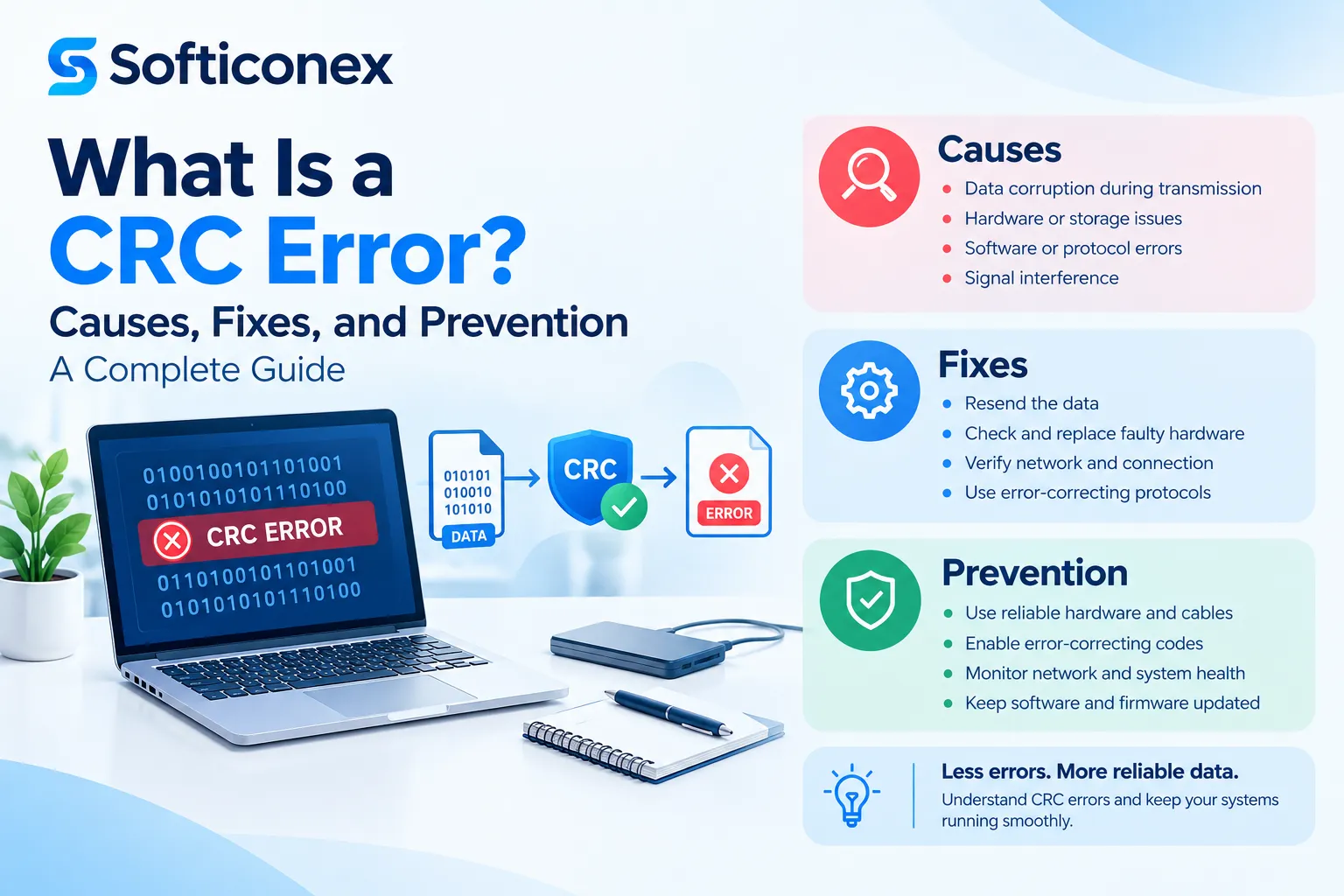
A CRC error, short for Cyclic Redundancy Check error, is a data integrity warning that appears when a device or program detects that a file has been altered, damaged, or misread during copying, extraction, transfer, or storage. It is one of the most common errors encountered when working with external drives, compressed archives, downloads, and disc media.
On Windows systems, this error typically appears as the message “Data error (cyclic redundancy check)” and prevents the affected file from being opened, copied, or extracted until the underlying issue is resolved.
This guide explains what causes CRC errors, the consequences of ignoring them, and a complete set of practical, step-by-step solutions to fix and prevent them.
How CRC Detection Works
Every time a file is written to storage or transmitted across a network, the system calculates a short numerical value called a checksum, based on the file’s contents, using an algorithm known as the Cyclic Redundancy Check. This checksum acts like a digital fingerprint and is stored alongside the file.
Later, whenever that file is read, copied, or transferred again, the system recalculates the checksum and compares it against the originally stored value:
- If the two values match, the file is considered intact and opens normally.
- If the two values do not match, a CRC error is triggered, indicating that the data has changed somewhere along the way.
This process is similar to a tamper-evident seal on a parcel. If the seal is broken upon arrival, you immediately know that something happened during transit, even without seeing exactly what caused it.
Common Causes of CRC Errors
CRC errors can originate from a wide variety of hardware and software issues. The most frequent causes include:
- Bad sectors on a hard drive or SSD, which prevent accurate reading or writing of data.
- Corrupted or failing storage media, such as USB drives, SD cards, or external hard drives.
- Improper device removal, such as unplugging a USB drive mid-transfer.
- Malware or virus infections that corrupt file structures.
- Faulty or damaged cables and connectors, including USB, SATA, or Ethernet cables.
- Defective RAM, which can corrupt data before it is even written to disk.
- Interrupted file compression, particularly with ZIP, RAR, or 7z archives.
- Aging hardware that has accumulated wear over years of use.
- Unstable network connections, causing packet loss during downloads or transfers.
- Sudden power loss during a read or write operation.
Where CRC Errors Commonly Appear
- Copying files from a USB drive, external hard drive, or SD card
- Extracting ZIP, RAR, or 7z archive files
- Installing software from a disc or ISO image
- Downloading large files such as games, videos, or software packages
- Transferring files over a shared network
- Burning or reading optical discs (CDs/DVDs)
Consequences of Ignoring a CRC Error
Leaving a CRC error unresolved can lead to a number of downstream problems, including:
- Permanent data loss, where the affected file becomes completely unreadable.
- Failed software or game installations.
- Corrupted backups, undermining your recovery plan exactly when it is needed most.
- Early warning signs of a failing drive, which can escalate into widespread data loss if ignored.
- Repeated transfer failures, occurring every time the file is accessed until the root cause is fixed.
- Lost time and productivity, particularly with large or time-sensitive files.
Step-by-Step Solutions to Fix a CRC Error
1. Retry the Operation
A CRC error is sometimes a one-off glitch caused by a temporary read issue. Simply retrying the copy, transfer, or extraction can resolve it without further action.
2. Check and Repair the Disk (CHKDSK)
On Windows, running a disk check is often the most effective first step:
- Open Command Prompt as Administrator.
- Type: chkdsk X: /f /r (replace X: with the affected drive letter).
- Press Enter and allow the scan to locate and repair bad sectors.
3. Use a Different Cable or Port
If the error occurs during a USB transfer, try a different cable or a different USB port. A worn or damaged cable is a common and frequently overlooked cause of CRC errors.
4. Copy the File in Smaller Pieces
For files that partially transfer, try splitting the file into smaller segments using file-splitting utilities, then reassembling the pieces once each segment has copied successfully.
5. Use File Repair Software
Dedicated repair tools can often recover corrupted ZIP, RAR, video, or document files:
- Archives: WinRAR’s built-in “Repair Archive” feature, or 7-Zip.
- General file recovery: tools such as Recuva, EaseUS Data Recovery, or Disk Drill.
6. Scan for Malware
Run a full antivirus or anti-malware scan to rule out malicious software as the source of the file corruption.
7. Try a Different Storage Device
If the CRC error consistently appears on the same USB drive or SD card, the media itself may be failing. Copy the file to a different device to confirm.
8. Update or Reinstall Drivers
Outdated or corrupted drivers for disk controllers, USB ports, or network adapters can contribute to read and write errors. Update them through Device Manager.
9. Check RAM for Errors
Faulty memory can corrupt data before it is written to disk. Run the Windows Memory Diagnostic tool (searchable from the Start menu) to rule this out.
10. Use SFC and DISM for System File Corruption
If the issue relates to corrupted Windows system files, run the following commands in an elevated Command Prompt:
sfc /scannow
DISM /Online /Cleanup-Image /RestoreHealth
11. Re-download the File
If the CRC error occurred during a download, the original transfer may have been interrupted. Re-downloading the file, ideally using a download manager that verifies file integrity, often resolves the issue.
12. Format and Replace the Drive (Last Resort)
If a drive repeatedly produces CRC errors even after repair attempts, it may be nearing failure. Back up any remaining accessible data immediately and consider replacing the drive.
How to Prevent CRC Errors
- Always use “Safely Remove Hardware” before unplugging USB devices.
- Maintain backups of important files across multiple devices or locations (the 3-2-1 backup rule).
- Avoid interrupting file transfers or extractions once started.
- Run regular disk health checks using tools like CHKDSK or CrystalDiskInfo for SMART data.
- Use surge protectors to prevent power-related data corruption.
- Replace aging or unreliable cables and storage devices proactively.
- Keep antivirus software updated and run periodic scans.
Frequently Asked Questions (FAQs)
Q1. Is a CRC error a sign that my hard drive is dying?
Not always. It can be a one-time glitch caused by a bad cable or an interrupted transfer. However, if the error recurs frequently on the same drive, it is a strong warning sign of physical degradation, and you should back up your data immediately.
Q2. Can a CRC error be fixed without losing data?
Often, yes. Running CHKDSK, using file repair tools, or simply retrying the transfer can resolve the issue without data loss. However, if the file is physically damaged on a failing sector, some data loss may be unavoidable.
Q3. Why does a CRC error happen with ZIP files specifically?
ZIP files store a checksum for each compressed file. If the archive was downloaded incompletely, transferred over an unstable connection, or the source file was corrupted before compression, the checksum will not match upon extraction, triggering the error.
Q4. Does formatting a drive fix CRC errors?
Formatting can resolve logical corruption, such as file system errors, but it will not fix physical damage like bad sectors. If bad sectors are the underlying cause, they may reappear even after formatting.
Q5. Can antivirus software cause CRC errors?
Indirectly, yes. Some malware corrupts file structures, and antivirus quarantine actions on infected files can also alter them, sometimes triggering CRC mismatches.
Q6. Is CRC the same as a checksum or hash (such as MD5 or SHA)?
They are related but not identical. CRC is a specific, fast error-detection algorithm mainly used for detecting accidental corruption. MD5 and SHA are cryptographic hash functions, often used for security verification. Both work on the same underlying principle of comparing an expected value to a calculated one.
Q7. Can I ignore a CRC error and still use the file?
Generally, no. The file is likely incomplete or altered in a way that could cause unpredictable behavior, application crashes, or corrupted content, such as a video with visual glitches or a document with garbled text.
Q8. Does this happen on Mac and Linux too?
Yes. While the exact error message differs by operating system, the underlying concept of data integrity verification through CRC applies universally across Windows, macOS, Linux, network protocols, and storage hardware.
Conclusion
A CRC error is ultimately a protective mechanism: it tells you that a file no longer matches what it is supposed to be, rather than silently handing you corrupted data. Most CRC errors stem from correctable issues such as damaged cables, interrupted transfers, bad sectors, or unstable downloads, and can be resolved using the step-by-step methods outlined above. Where the error points to failing hardware, treating it as an early warning sign and backing up your data immediately is the most important action you can take.