What Is a Router?
A router is a networking device that connects multiple devices such as computers, smartphones, tablets, smart TVs, and printers to the internet and to each other. It acts as a traffic controller for data, directing information between your home or office network and the wider internet.
In simple terms, when your internet service provider (ISP) sends internet access into your home through a modem, the router takes that connection and shares it with all your devices, either through cables (wired/Ethernet connections) or wirelessly (Wi-Fi).
Key Functions of a Router
- Distributes internet access: To multiple devices at once
- Creates a local network (LAN): So devices can communicate with each other (for example, a laptop printing to a wireless printer)
- Assigns IP addresses: To each connected device using DHCP (Dynamic Host Configuration Protocol)
- Provides security features: Like firewalls, encryption (WPA2/WPA3), and parental controls
- Manages traffic: To reduce congestion and improve speed for connected devices
Where Are Routers Used?
Routers are used almost everywhere devices need internet access:
- Homes: To connect phones, laptops, smart TVs, gaming consoles, and smart home devices to Wi-Fi
- Offices and businesses: To connect employee computers, printers, and servers, often with more advanced routers supporting many users
- Schools and universities: To provide campus-wide internet access
- Public spaces: Cafes, airports, hotels, and libraries use routers to offer public Wi-Fi
- Industrial and IoT settings: Connecting sensors, cameras, and automated equipment
- Data centers: Enterprise-grade routers manage massive amounts of traffic between servers and the internet
Types of Routers
Before setup, it helps to know what kind of router you have:
- Wired Routers: Connect devices only via Ethernet cables
- Wireless (Wi-Fi) Routers: Broadcast a wireless signal in addition to wired ports
- Modem-Router Combos: Combine a modem and router in one device (common with ISP-provided equipment)
- Mesh Routers: Use multiple units placed around a building to provide seamless whole-home coverage
- Dual-Band/Tri-Band Routers: Broadcast on multiple frequencies (2.4GHz and 5GHz, sometimes 6GHz) for better speed and reduced interference
Method 1: Setting Up a Router Using a Web Browser (Most Common)
This is the traditional method that works for almost all router brands.
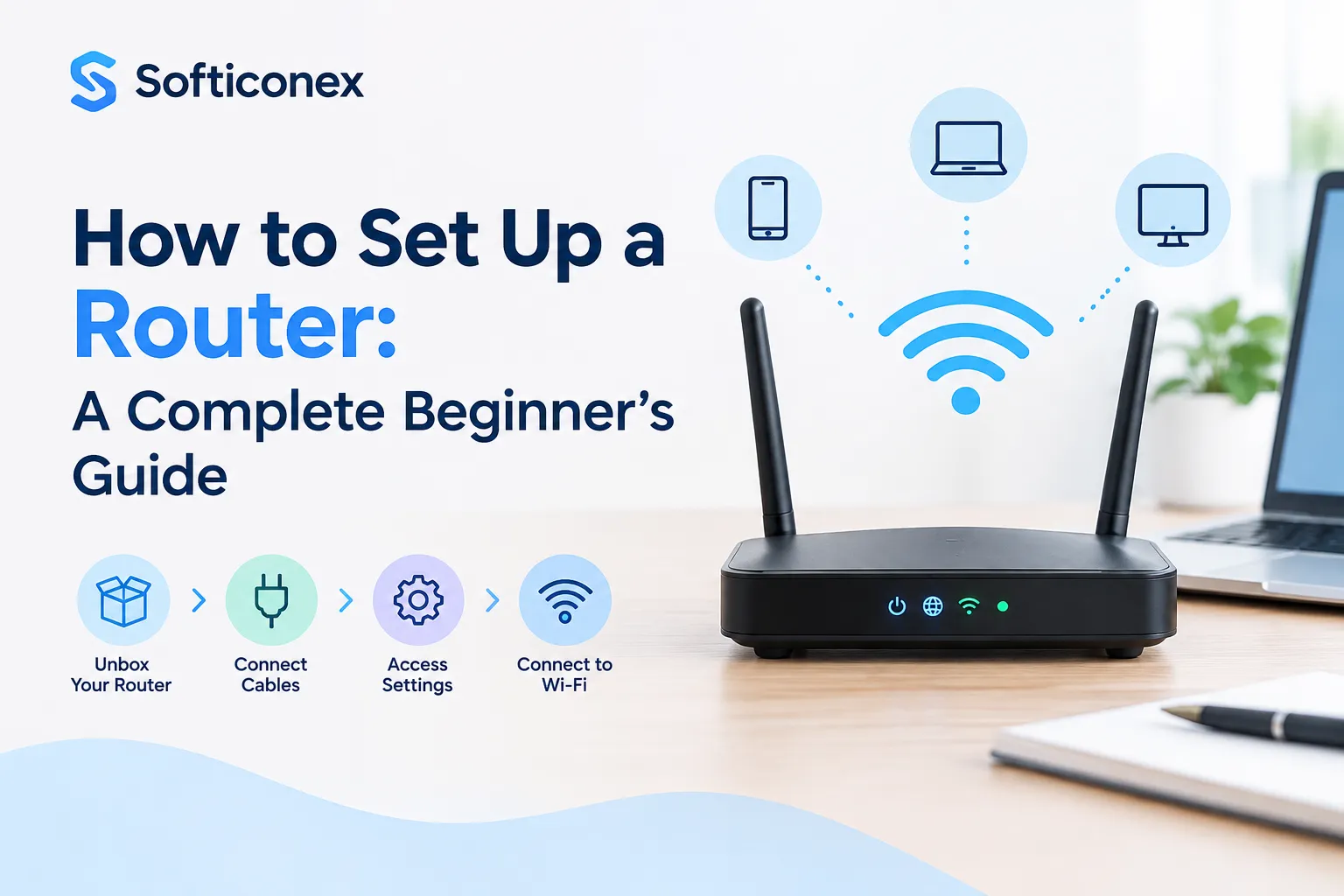
Step 1: Connect the Router to the Modem
- Plug an Ethernet cable from your modem’s LAN/output port into the router’s WAN or Internet port (usually a different color from the other ports).
Step 2: Power On the Devices
- Turn on the modem first and wait for it to fully connect to the internet (check the indicator lights).
- Then power on the router and wait for its lights to stabilize.
Step 3: Connect Your Computer to the Router
- Use an Ethernet cable for the most stable connection, or connect to the router’s default Wi-Fi network (the name and password are usually printed on a sticker on the router itself).
Step 4: Access the Router’s Admin Panel
- Open a web browser and type the router’s default IP address into the address bar. Common addresses include:
- 192.168.0.1
- 192.168.1.1
- 10.0.0.1
- Check the sticker on your router if these don’t work, the correct address and default login are usually listed there.
Step 5: Log In
- Enter the default username and password (often “admin” for both, unless changed by the manufacturer).
- Immediately change this password after logging in for security.
Step 6: Configure Basic Settings
- Internet/WAN settings: Usually set to automatic (DHCP) unless your ISP requires manual configuration (PPPoE, static IP, etc.)
- Wireless settings: Set your network name (SSID) and a strong Wi-Fi password
- Security type: Choose WPA3 if available, or WPA2 as a minimum
- Save and apply the settings the router may restart
Step 7: Test the Connection
- Reconnect your devices to the new Wi-Fi network name and password to confirm internet access is working.
Method 2: Setting Up a Router Using a Mobile App
Most modern routers (from brands like TP-Link, Netgear, Asus, and Google Nest) offer a companion mobile app for easier setup.
- Download the manufacturer’s app from the App Store or Google Play.
- Power on the router and connect your phone to its default Wi-Fi network, or scan a QR code on the device.
- Follow the in-app setup wizard, which typically guides you through:
- Connecting to the internet
- Naming your Wi-Fi network
- Setting a password
- Applying security settings
- Once complete, the app usually allows ongoing management, such as monitoring connected devices, setting parental controls, and running speed tests.
Method 3: Setting Up a Router Using WPS (Wi-Fi Protected Setup)
WPS allows a quick, password-free way to connect devices to a router, useful for smart home gadgets or printers.
- Press the WPS button on the router (usually on the back or side).
- Within two minutes, press the WPS button on the device you want to connect (or select “WPS connect” in its settings).
- The devices will pair automatically without requiring a manual password entry.
Note: WPS is convenient but considered less secure than manually entering a strong password, so it’s best used for trusted devices only.
Method 4: Setting Up a Mesh Router System
Mesh systems (like Google Nest Wifi, Eero, or Orbi) usually skip the browser-based setup entirely and rely on an app.
- Plug the primary mesh unit into your modem.
- Download the corresponding app and create an account.
- Follow the app’s instructions to name your network and set a password.
- Place additional mesh units around your home as prompted by the app, which will test signal strength between units.
- The app finalizes the setup and allows you to manage the whole network from your phone.
Method 5: ISP-Provided Router Setup
If your router was supplied by your internet provider, it often arrives pre-configured:
- Simply plug it in and connect it to the wall’s internet line.
- Power it on and wait for the lights to indicate a successful connection.
- Connect to the pre-set Wi-Fi name and password (found on a sticker on the device).
- Optionally, log into the admin panel or provider’s app to customize settings further.
Essential Security Tips After Setup
- Change the default admin username and password immediately
- Use WPA3 or WPA2 encryption never leave the network open/unsecured
- Regularly update the router’s firmware for security patches
- Disable remote management if you don’t need to access the router from outside your network
- Create a separate guest network for visitors and smart home devices
- Turn off WPS if you’re not actively using it, since it can be a security weak point
Troubleshooting Common Setup Issues
| Problem | Possible Fix |
| Can’t access the admin page | Double-check the IP address; try resetting the router with the reset pinhole |
| No internet after setup | Confirm modem is connected and online before blaming the router |
| Weak Wi-Fi signal | Reposition the router centrally, away from walls and metal objects |
| Forgotten password | Use the physical reset button to restore factory settings, then reconfigure |
| Devices keep disconnecting | Update firmware or reduce the number of connected devices on one band |
Router vs. Modem: What’s the Difference?
People often confuse routers and modems, but they do different jobs:
- Modem: Connects your home to your ISP’s network and translates the signal (cable, fiber, or DSL) into data your devices can use. Without a modem, you have no internet connection at all.
- Router: Takes that internet connection from the modem and distributes it to multiple devices, wired or wirelessly, while also creating your local network.
Some devices combine both functions into a single “gateway” unit, which is common with ISP-provided equipment.
How to Choose the Right Placement for Your Router
Router placement significantly affects Wi-Fi performance:
- Place it in a central location in your home or office, not tucked in a corner
- Keep it elevated (on a shelf or table, not on the floor)
- Avoid placing it near metal objects, mirrors, microwaves, or thick walls, which can block or interfere with the signal
- Keep it away from other electronics like cordless phones or baby monitors that use similar frequencies
- For larger spaces, consider a mesh system or a Wi-Fi extender instead of a single router
Wired vs. Wireless Connections: Which Should You Use?
- Wired (Ethernet): Best for devices that need a stable, fast, low-latency connection desktop computers, gaming consoles, smart TVs, and streaming devices.
- Wireless (Wi-Fi): Best for mobility phones, laptops, tablets, and smart home devices that move around or don’t have Ethernet ports.
Using both wired and wireless connections together is common and helps balance network load.
Understanding 2.4GHz vs. 5GHz vs. 6GHz Bands
Most modern routers broadcast on multiple frequency bands:
| Band | Range | Speed | Best For |
| 2.4GHz | Longer range, better wall penetration | Slower | Smart home devices, far-away rooms |
| 5GHz | Shorter range | Faster | Streaming, gaming, video calls |
| 6GHz (Wi-Fi 6E/7 routers) | Shortest range | Fastest | Very high-speed tasks in close range |
Many routers let devices automatically pick the best band, or you can manually assign devices to a specific band for better performance.
How to Reset a Router (Factory Reset)
If you’re locked out, forgot your password, or want to start fresh:
- Locate the small reset button or pinhole on the router (usually on the back).
- Press and hold it for 10–15 seconds using a pin or paperclip.
- Wait for the lights to blink and the router to restart.
- The router will return to its factory default settings, meaning you’ll need to set it up again from scratch using the default IP address and login.
Note: A factory reset erases all custom settings, including your Wi-Fi name, password, and any port forwarding rules.
Setting Up Parental Controls and Guest Networks
Most routers allow you to:
- Create a guest network with a separate password, keeping visitors off your main network and away from personal devices like computers and printers.
- Set parental controls to block specific websites, limit screen time, or pause internet access for certain devices at scheduled times.
- Monitor connected devices through the admin panel or app to see what’s using your network.
These settings are usually found under sections labeled “Guest Network,” “Parental Controls,” or “Access Control” in the router’s app or web interface.
How Softiconex IT Team Helps You Set Up Your Router
At Softiconex, our IT team takes the hassle out of router setup so you can get online quickly and securely. From unboxing your device to configuring advanced network settings, our experts handle every step connecting your modem and router, setting up a strong Wi-Fi name and password, optimizing your network for speed and coverage, and enabling essential security features like WPA3 encryption and firewall protection.
Whether you’re setting up a home network, a mesh system for whole-house coverage, or a more complex office network with multiple devices, our team ensures everything is configured correctly the first time. We also help with troubleshooting connectivity issues, firmware updates, guest network setup, and parental controls, giving you a fast, reliable, and secure network without the technical guesswork. With Softiconex, professional router setup is just a call away. Get in touch for a professional router setup.
Frequently Asked Questions (FAQs)
1. What is the default IP address to access my router?
It’s commonly 192.168.0.1, 192.168.1.1, or 10.0.0.1, but this varies by brand. Check the sticker on the router or the manufacturer’s website if these don’t work.
2. What do I do if I forget my router’s admin password?
Perform a factory reset using the reset button, then log in with the default credentials (often “admin”/”admin”) and set a new password.
3. Why can’t I access the router’s settings page?
This usually happens if you’re not connected to the router’s network, you’ve typed the wrong IP address, or the router needs a restart. Double-check your connection and try again.
4. Do I need a modem and a router, or just one device?
If your ISP gave you a combined modem-router (gateway), you only need that one device. If you have a separate modem, you’ll need a router to create a Wi-Fi network and share the connection with multiple devices.
5. How often should I update my router’s firmware?
Check for updates every few months, or enable automatic updates if your router supports them. Firmware updates often include important security patches.
6. Can I set up a router without a computer?
Yes. Most routers can be fully set up using a smartphone app, which is often simpler than the browser-based method.
7. Why is my Wi-Fi slow after setup?
Common causes include router placement, interference from other electronics, too many connected devices, outdated firmware, or being on the wrong frequency band (2.4GHz vs 5GHz).
8. Is it safe to use the default Wi-Fi password that comes with the router?
It’s generally safe since default passwords are often randomly generated and unique per device, but changing it to something memorable and strong is still a good practice, especially if you plan to share it verbally or write it down.
9. Can I use two routers in one house?
Yes. This is common for extending coverage in larger homes. One router can be set up as an access point connected to the main router, though mesh systems are usually a simpler alternative.
10. How long does it typically take to set up a router?
For most modern routers, setup takes about 10–20 minutes, including connecting cables, accessing the admin panel or app, and configuring Wi-Fi settings.
Conclusion
Setting up a router doesn’t have to be complicated. Whether you prefer the traditional browser-based method, a mobile app, WPS, or a mesh system, most routers today are designed to get you online within minutes. The key steps remain the same across most devices: connect the hardware, access the settings, secure your network with a strong password, and test your connection. Taking a few extra minutes to configure security settings properly will help keep your network safe from unauthorized access.