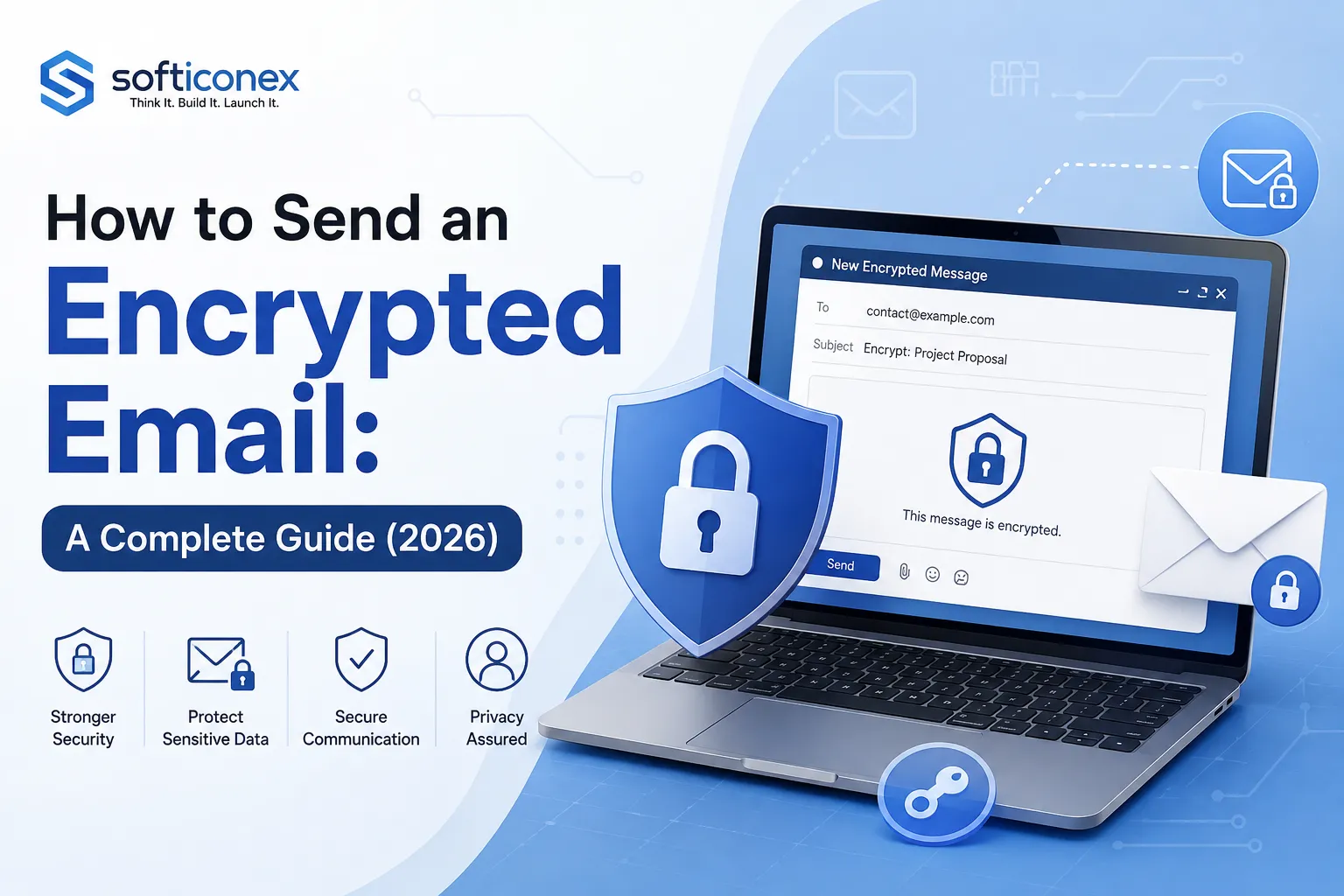
Email is still the backbone of how we share sensitive information: contracts, medical records, financial statements, passwords, and confidential business data all move through our inboxes every day. Yet by default, most email is not private. If you’ve ever wondered how to send an encrypted email, this guide breaks down exactly what encrypted email is, why it matters, and every practical method you can use today from built-in tools in Gmail and Outlook to dedicated encrypted email providers.
What Is Encrypted Email?
Encrypted email is a message that has been scrambled using cryptographic algorithms so that only the intended recipient, the person holding the correct decryption key can read its actual content. Anyone who intercepts the message along the way, including your email provider, an attacker on the network, or a hacker who breaches a mail server, only sees unreadable ciphertext.
It’s important to understand there are two different layers of protection people often confuse:
- Encryption in transit (TLS): Most modern email providers automatically encrypt the connection between mail servers using TLS. This protects your message while it’s traveling across the internet, but once it lands in a mailbox, it can sit there in plain, readable form accessible to the provider, IT admins, or anyone who gains access to that account.
- End-to-end encryption (E2EE): This is true encrypted email. The message is encrypted on the sender’s device and can only be decrypted by the recipient’s device (or key). Nobody in between, not even the email provider, can read the content. Methods like PGP, S/MIME, and providers such as Proton Mail or Tuta operate at this level.
If your goal is genuine privacy not just “the connection was secure while it moved” you need end-to-end encryption, not just TLS.
Why Encrypted Email Matters
- Data breaches are common and costly: Unencrypted inboxes are a favorite target for attackers, and a single compromised account can expose years of sensitive correspondence.
- Business email compromise (BEC) is a massive threat: Attackers impersonate executives or vendors to redirect payments or steal data, and unprotected email makes this easier.
- Compliance requirements: Industries like healthcare (HIPAA), finance, and legal services often have explicit obligations to protect client and patient data in transit and at rest.
- Third-party access: Standard email providers can technically access unencrypted messages stored on their servers, whether for advertising, legal requests, or security scanning.
- Simple prevention of accidental exposure: Encryption limits the damage if an email is sent to the wrong person, forwarded without permission, or accessed after a lost device.
Encrypted Email by the Numbers
The risk isn’t theoretical it shows up consistently in industry data:
- The vast majority of malware is still delivered through email, making it one of the most common attack paths into an organization.
- The average cost of a data breach has climbed toward roughly $4.88 million globally, according to IBM’s Cost of a Data Breach research.
- Business email compromise scams alone cost victims well over $2.9 billion in a single year, based on FBI Internet Crime Complaint Center (IC3) figures.
Taken together, these numbers explain why encrypted email has moved from a “nice to have” for security teams to a baseline expectation for anyone handling sensitive data.
Pros of Sending Encrypted Emails
- Confidentiality: Only the intended recipient can read the message content.
- Data integrity: Most encryption methods also verify the message wasn’t tampered with in transit.
- Regulatory compliance: Helps meet requirements like HIPAA, GDPR, and industry-specific data protection rules.
- Reduced liability: Encrypted data is typically excluded from breach-notification requirements in many jurisdictions, since exposed ciphertext isn’t usable.
- Trust and professionalism: Clients and partners increasingly expect sensitive communication to be protected.
- Control after sending: Some tools let you set expiration dates, revoke access, or block forwarding even after the email has left your outbox.
Methods to Send an Encrypted Email
1. Use a Dedicated Encrypted Email Provider (Proton Mail or Tuta)
The simplest way to get end-to-end encryption without technical setup is to use an email service built around it from the ground up.
- Proton Mail: Uses OpenPGP, an open cryptographic standard, so encrypted messages work automatically between Proton Mail users and are interoperable with anyone using PGP-compatible email clients. For recipients outside the encrypted ecosystem, you can send a password-protected message instead.
- Tuta (formerly Tutanota): uses its own hybrid encryption system (AES + RSA) that encrypts more metadata by default, including subject lines, though it doesn’t support PGP, so encrypted messages to non-Tuta users require a shared password rather than automatic end-to-end delivery.
Best for: People who want maximum privacy with minimal setup, journalists, activists, healthcare professionals, or anyone who wants a permanent encrypted-by-default inbox.
2. PGP/GPG Encryption (Works With Any Email Provider)
Pretty Good Privacy (PGP), and its open-source implementation GPG, lets you encrypt email using any existing email address Gmail, Outlook, Yahoo, or a custom domain.
How it works, step by step:
- Generate a public/private key pair using a tool like GPG Suite (Mac), Gpg4win (Windows), or a browser extension like Mailvelope.
- Share your public key with people who want to send you encrypted mail; keep your private key secret.
- To send an encrypted message, use your recipient’s public key to encrypt the email before sending.
- The recipient uses their private key to decrypt and read it.
Trade-off: Both sender and recipient need PGP set up, which makes it powerful for technical users but clunky for one-off messages to people unfamiliar with the process.
3. S/MIME (Best for Organizations With Existing Certificates)
S/MIME (Secure/Multipurpose Internet Mail Extensions) is a certificate-based encryption standard built into Outlook, Gmail (on qualifying Google Workspace plans), and Apple Mail.
- Requires both sender and recipient to have digital certificates issued by a trusted certificate authority.
- Once set up, encryption happens automatically within the mail client no extra plugins needed for the sender or recipient.
- Common in enterprises and government agencies with an existing public key infrastructure (PKI).
Best for: Organizations that already manage internal certificates and need seamless encryption between known, verified parties.
4. Gmail’s Built-In Options
Gmail offers a few overlapping features worth knowing apart:
- Confidential Mode: Restricts forwarding, copying, printing, and downloading, and can require an SMS passcode to open. Important caveat: this is access control, not true end-to-end encryption Google can still technically access the message content.
- Client-Side Encryption (CSE): Available on Google Workspace Enterprise Plus, this genuinely encrypts content before it leaves your device, so not even Google can read it.
- S/MIME: Available on qualifying Workspace tiers, as described above.
Quick steps for Confidential Mode:
- Open Gmail and click Compose.
- In the toolbar at the bottom of the compose window, click the lock-and-clock icon (Confidential Mode).
- Set an expiration date and, optionally, an SMS passcode requirement.
- Send as normal the recipient will need to verify via a link or passcode to view it.
5. Outlook’s Built-In Encryption
Microsoft 365 gives Outlook users a few native options, depending on subscription tier:
- Compose a new message.
- Go to Options in the ribbon.
- Click Encrypt and choose Encrypt-Only (protects content) or Do Not Forward (also restricts forwarding, printing, and copying).
- Send as usual.
Outlook also supports sensitivity labels ( “Confidential”) for organizations using Microsoft Purview Information Protection, and S/MIME for certificate-based encryption.
6. Encrypt Attachments Before Sending
If you only need to protect a document rather than the whole email thread, you can encrypt the file itself:
- Open the file (PDF, Word, Excel, etc.).
- Use built-in password protection ( Adobe Acrobat for PDFs, or “Protect Document” in Microsoft Office) with AES-256 encryption if available.
- Attach the encrypted file to a regular email.
- Share the password through a separate channel: a phone call, text message, or secure messaging app never in the same email.
Best for: One-off sensitive attachments when you don’t want to change your entire email workflow.
7. Third-Party Encryption Plugins
Tools like FlowCrypt, Mailvelope, Virtru, and SendSafely add encryption directly into Gmail or Outlook via browser extensions or add-ins, often layering PGP or their own encryption on top of your existing inbox without switching providers. Many also add features like link-based secure sharing, read receipts, and the ability to revoke access after sending.
8. Sending Encrypted Email From Your Phone
All of the methods above work on mobile too, though the steps look slightly different:
- Proton Mail / Tuta apps: Encrypt automatically, exactly like their desktop versions just compose and send as normal.
- Gmail app: Tap the three-dot menu in a new message and select Confidential Mode, then set an expiration and passcode option, the same as on desktop.
- Outlook app: Open message options via the three-dot menu while composing, then choose Encrypt before sending.
- PGP on mobile: Apps like OpenKeychain (Android) or Mail with PGP support (via third-party iOS apps) let you manage keys and encrypt messages, though setup is more involved than on desktop.
Tip: If you frequently send sensitive information while on the move, a dedicated encrypted provider’s mobile app is usually the least error-prone option, since it removes the risk of forgetting to toggle an encryption setting before hitting send.
Common Mistakes That Undermine Encrypted Email
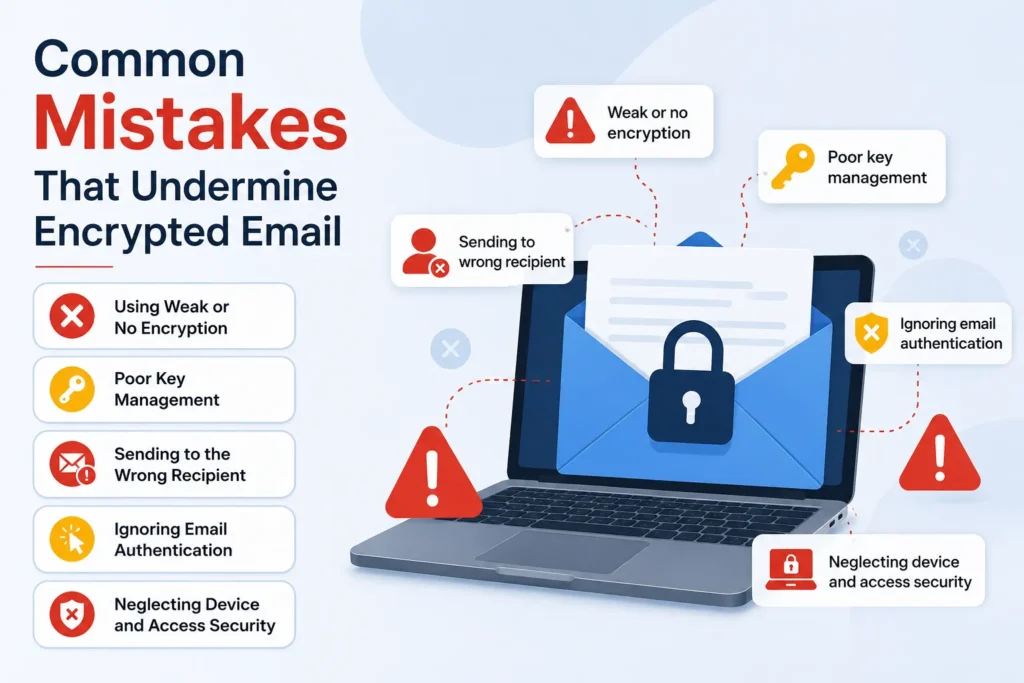
Even with the right tools, small mistakes can quietly cancel out your protection:
- Sending the password in the same email as the encrypted attachment: This defeats the purpose entirely of always sharing passwords through a separate channel like SMS or a phone call.
- Assuming Confidential Mode is full encryption: Gmail’s Confidential Mode restricts actions like forwarding but doesn’t stop Google from technically accessing content; it’s not a substitute for true end-to-end encryption when that’s what you need.
- Mixing encrypted and unencrypted threads: Replying to an encrypted message from a different, non-encrypted account can expose the content you were trying to protect.
- Ignoring subject lines: Standard PGP encrypts the message body but not the subject line, so avoid putting sensitive details there.
- Skipping recipient verification: Encrypting a message to the wrong public key, or to an impersonated address, can send sensitive data straight to an attacker who always verifies keys and addresses through a trusted channel first.
- Letting certificates or keys expire: S/MIME certificates and PGP keys need periodic renewal; an expired certificate can silently break encryption or delivery.
Which Method Should You Use?
| Situation | Recommended Method |
| You want an encrypted-by-default personal inbox | Proton Mail or Tuta |
| You’re a developer or privacy-focused user comfortable with keys | PGP/GPG |
| Your organization already issues certificates | S/MIME |
| You use Gmail and need something quick | Confidential Mode (for casual sensitivity) or CSE (for real encryption) |
| You use Outlook/Microsoft 365 at work | Built-in Encrypt or Do Not Forward |
| You just need to protect one file | Password-protected, encrypted attachment |
| You want encryption without leaving your current inbox | A plugin like FlowCrypt or Virtru |
How Softiconex Helps You Encrypt Your Email Conversations?
Choosing the right method above is only half the battle, setting it up correctly, and keeping it working across an entire team, is where most encryption efforts break down. Softiconex’s IT and security consulting team helps businesses assess their actual risk and compliance needs, then implement the right fit whether that’s rolling out S/MIME certificates across an organization, configuring Google Workspace or Microsoft 365 encryption policies correctly, deploying PGP for technical teams, or migrating to a dedicated encrypted provider. We also handle the parts that get overlooked, like staff training, key management, and ongoing certificate renewal, so your encrypted email setup stays secure instead of quietly lapsing.
FAQs
Is encrypted email completely hacker-proof?
No security method is 100% unbreakable, but properly implemented end-to-end encryption (PGP, S/MIME, or providers like Proton Mail) makes it computationally impractical for attackers to read your messages without the correct key.
Does Gmail encrypt my emails by default?
Gmail encrypts the connection between servers using TLS when both sides support it, but this isn’t the same as end-to-end encryption. The content itself isn’t protected from Google’s own systems unless you use Confidential Mode, Client-Side Encryption, or S/MIME.
Can I send an encrypted email to someone who doesn’t use encryption?
Yes, with some methods. Password-protected messages (used by Proton Mail, Tuta, and encrypted attachments) let anyone with the password read the message, even without their own encrypted email account.
Is encrypted email free?
Yes, in most cases. Proton Mail, Tuta, Gmail’s Confidential Mode, and PGP/GPG tools all offer free tiers or are free to use. Advanced features like custom domains, S/MIME certificates, or enterprise plugins may require a paid plan.
What’s the difference between encryption and password protection?
Password protection restricts access to a file or message but doesn’t necessarily scramble the underlying data with strong cryptography. True encryption transforms the content itself so it’s unreadable without the correct key, even if someone bypasses the access control.
Do I need encrypted email for personal use, or is it only for businesses?
Anyone sharing sensitive information tax documents, medical details, passwords, or personal identification benefits from encrypted email, not just businesses handling regulated data.
Conclusion
Sending an encrypted email doesn’t have to mean overhauling how you communicate. For most people, the fastest path is a dedicated provider like Proton Mail or Tuta, or the built-in encryption features already sitting inside Gmail and Outlook. For businesses and technical users who need tighter control or compatibility with existing security infrastructure, S/MIME and PGP/GPG offer stronger, more customizable protection. And when you just need to protect a single file, a password-protected attachment shared over a separate channel is often enough.
The right choice ultimately comes down to who you’re emailing, how sensitive the information is, and how much setup you’re willing to do. What matters most is picking a method any genuine encryption is better than none and avoiding the small mistakes, like sharing a password in the same email, that can quietly undo your protection. Start with the method that matches your current email provider and comfort level, and upgrade to a more robust option like PGP or a dedicated encrypted provider as your privacy needs grow.