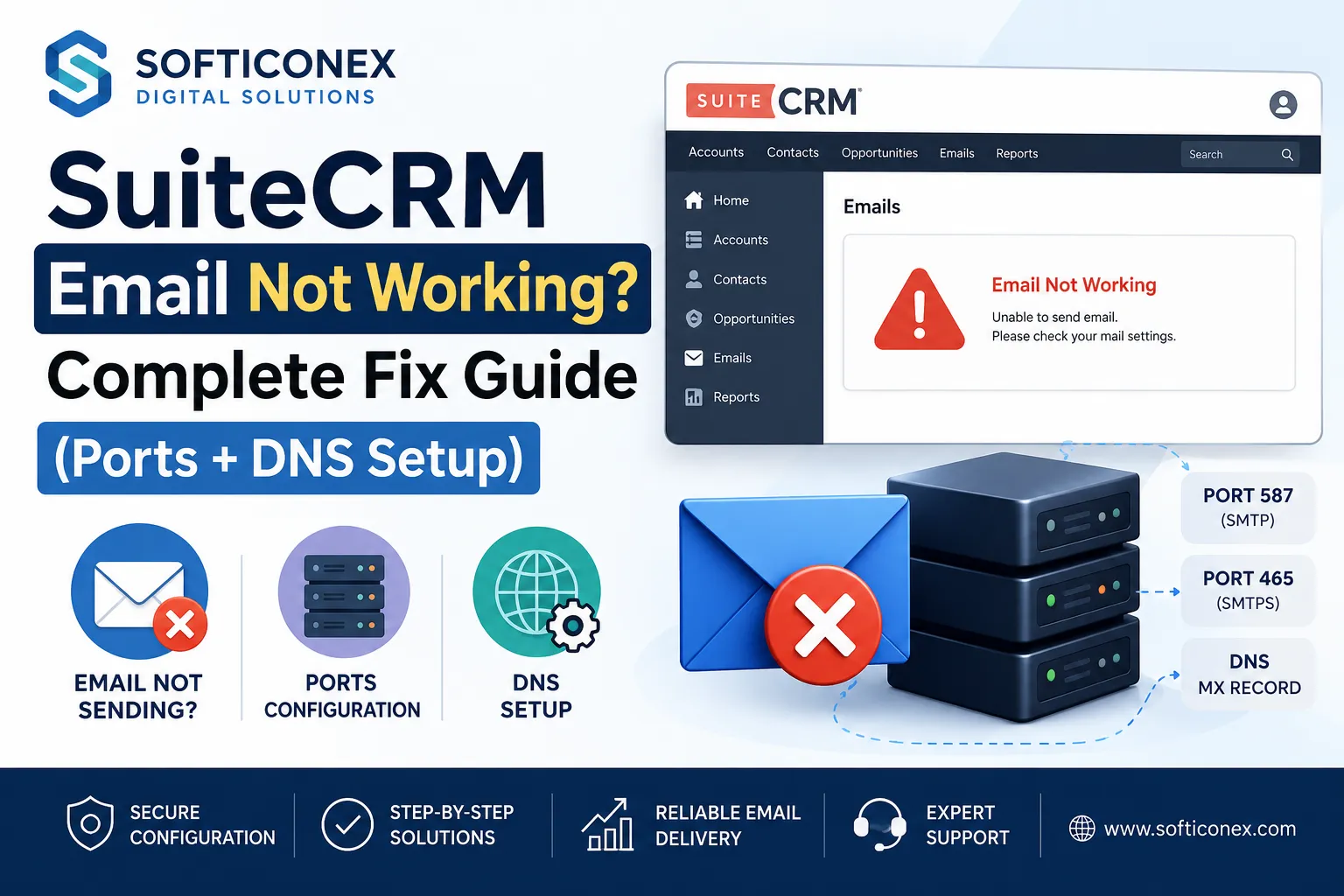
Has your SuiteCRM email stopped working? Are you facing a problem sending, receiving, or syncing? The main problem may not be a bug in SuiteCRM.
This may be because of a misconfigured port, DNS record or a blocked connection. These may direct mail traffic in the wrong direction. We are going to walk you through the common failure points.
We will start with the basic technical issues like ports and DNS. Then, we will move forward to SuiteCRM-specific configuration checks. First, we will understand what a SuiteCRM email module is. Afterwards, we will explain why it stops working.
What is the SuiteCRM Emails Module?
SuiteCRM’s Emails module helps users to view, store, compose, send and receive email from their own personal email account or a shared box. This includes the support or sales inbox in the CRM.
It connects these inboxes through IMAP and SMTP. It automatically syncs communications to related lead, contact, or account records for team visibility.
We go through users’ comments and get to know about some common reasons. So, let’s understand why the SuiteCRM Email stops working.
Why is SuiteCRM Email not Working?
If you are thinking that SuiteCRM’s Email Module sends on its own, then you are wrong. It connects to your mail server using standard email protocols. For instance, it uses SMTP for sending and IMAP for receiving over particular network ports.
In SuiteCRM, email stops working for some reason. Like the port that SuiteCRM is using is blocked, closed or wrong for your provider, or DNS records for your mail domain are missing, outdated or misconfigured.
Besides these, it may also be due to SuitCRM’s account restrictions, a firewall, hosting or network policy blocking outbound mail traffic, or SMTP / IMAP authentication settings that are different from the mail provider settings.
How to Fix SuiteCRM Email Breakage Issues?
There are several ways to fix SuiteCRM email issues, but we are going to tell you the most important ones. These are as follows:
Check the Ports SuiteCRM is Using
Whether it’s an outbound or an inbound email connection, it depends on a particular port (whether it’s open and reachable or not).
To check that, use the port checker to determine if the connection is possible. Use the wrong port, and you will get a connection error on SuiteCRM.
If SuiteCRM is configured to use port 25 for outbound mail. It will give you silent failures frequently. Usually, hosting providers block port 25.
This helps to prevent spam abuse. So, you can switch to port 587 (STARTTLS) or 465 (SSL/TLS) to resolve the blockage issue instantly.
When it comes to inbound mail (IMAP) connections, SuiteCRM uses port 143 (STARTTLS) or 993 (SSL/TLS).
Sometimes, even when you use the correct credentials, your inbound email account still does not respond. You may think it’s a login issue. Before you assume this, you need to check if port 993 is really open.
If the ports are open but you are still facing issues with sending and receiving mail or mail is landing in the spam folder, then you need to check DNS.
Verify Your DNS Setup
SuiteCRM depends on your domain’s mail-related DNS records being configured accurately. But before checking the individual DNS record, start running a DNS speed test to find out whether DNS lookups are slow or giving inconsistent results.
If DNS lookups look normal, check the DNS records like MX, SPF, DKIM, DMARC and PTR (reverse DNS) records.
Note: You can check MX, SPF, DKIM, and DMARC on your own, but you can’t check a PTR record yourself. As it’s not within your own domain’s DNS zone. It’s linked with the IP address of your mail server, and only your hosting provider can manage it. So, instead of editing it yourself, request the changes from your Hosting provider.
First of all, check if the MX record is missing or incorrect (incorrect MX records mean inbound mail will never reach your server at all). Check if the SPF record is correct (if not, then receiving mail servers will flag or reject your outbound mail).
Now check DKIM and DMARC records. Missing DKIM or SPF leads to your mail giving you a pop-up “sends successfully” but never reaching the recipient’s inbox.
The recipient mail server might have filtered such mail or dropped it in the spam box. A misconfigured DMARC policy may lead to mail rejection.
Check SuiteCRM’s Outbound Email Settings
To verify your SuiteCRM outbound email settings, go to the Admin panel. Under the System section, click on email settings. Verify your SMTP protocol, port and server address.
If you change your mail provider’s security policy, you need to update the credentials as well. Use the send test email button to confirm whether the connection even works.
You may see an error here, which is that SMTP connect () failed. This is a common error. If you get this error, it means the port is blocked, or the encryption type does not match what the provider expects on that port.
Check SuiteCRM’s Inbound Email Settings
To check and configure inbound email settings of SuiteCRM, go to the Admin Panel. Click on the Inbound email account. Now verify your IMAP credentials.
Make sure that the “check inbound mailboxes scheduled job” is active. This allows the system to automatically fetch and process incoming emails.
Verify Permission and Upgrade Status
So, you check all but still can’t send mail? The problem may not be at the account level but at the server level. Confirm that you have access to the correct outbound email account in the user settings.
If the email module is blank or gives a 500 error, clear your browser cache. Go to the Admin panel, then repair. Now, run the available repair or rebuild tools.
Recheck any inbound email accounts (The accounts created before the upgrade). Doing this will help you confirm if they are linked correctly.
Check SuiteCRM’s Log Files for the Exact Error
To check the exact error, check the SuiteCRM log files. Go to the SuiteCRM installation folder. Open the SuiteCRM log file (suitecrm.log).
You can find it in your installation’s root or custom logger directory (as set in config.php). Now you need to find the recent error entries related to email, SMTP or IMAP.
The exact words on the error tell you where you need to look. For instance, SMTP connect() failed is a port or encryption problem. Authentication failed means wrong credentials.
For Gmail and Microsoft 365 accounts, a wrong credentials error may not be due to a spelling mistake or a typo.
The point is that instead of a regular account password for IMAP/SMTP access, these providers require OAuth2. If this is not set up, SuiteCRM will fail authentication (even with a correct login).
However, upon checking your log files, if you see a “JSON parsing error”. Then, it’s not a port, DNS or login-related issue.
Something in the module got corrupted or left half-broken during the last upgrade. To fix it, repair or rerun that module’s setup. Also, don’t touch your email, port or DNS settings at all.
Check the Scheduler / Cron Job Status
SuiteCRM relies on a scheduled job to fetch inbound emails. The scheduler will not run if, in any case, your inbox stays empty (even if IMAP settings are accurate).
Navigate to the admin panel. Click on Schedulers. You need to see if the “Check inbound Mailboxes” job is active. If it is marked as inactive or not running, check your server’s system cron job (it’s the one pointing to SuiteCRM’s cron.php). This will verify it’s executing in real time.
Final Words
SuiteCRM email problems usually occur due to various reasons. It may be because of a blocked port, an incorrect DNS record, mismatched SMTP / IMAP credentials or a scheduler which is not running properly.
Checking these doesn’t require you to be a technical expert. You just need to check things in a correct manner.
Start with ports and DNS. Because these can resolve a lot of issues. If your problem is not solved, move to SuiteCRM’s email settings. Check your log files and verify if the scheduler is active. You just need to check and verify everything step by step.
If you have checked everything. But your issues still persist, then you need to contact a SuiteCRM specialist or your hosting provider.
FAQs
How to Confirm Your DNS is Resolving Correctly?
It takes a few seconds to confirm whether your DNS resolves correctly. Open your terminal or command prompt. Run nslookup -type=MX yourdomain.com (replace yourdomain .com with your actual mail domain).
If it returns your mail server’s hostname, your MX record is resolving properly. But if it returns a server failure or timeout error, then it’s not resolving properly.
Now repeat this with -type=TXT yourdomain.com. It will help you check your SPF record. For DKIM, you need a selector. This is a special code name your email provider uses, and you can get it from your provider.
Once you get it, run slookup -type=TXT selector._domainkey.yourdomain.com (replace selector with the real selector name your provider gives you). For DMARC, run this command: nslookup -type=TXT _dmarc.yourdomain.com.
How to Confirm a Port is Actually Open?
Checking whether a port is open or closed requires some time. Use command line tools like Test-NetConnection (Windows) or nc (Mac/Linux) from your server’s terminal.
If you receive connection failures or timeouts. Then, the port is closed or blocked. In this scenario, no reconfiguration of SuitCRM’s email settings will fix it. You now need to contact your hosting provider or network administrator to open the required port.
How can I log in to SuiteCRM?
When you register and enter all the details. You receive a confirmation email afterwards. Go to Gmail. Click on the provided link. It will take you to the login page. Just enter all the login details. Thus, you will be logged in.
Why does the SuiteCRM email stop working?
It happens because of a blocked or wrong port, broken or missing DNS records, or wrong login credentials (your email provider and SuiteCRM are using different credentials, not the same). It may also be because the cron job is not running.